> ## Documentation Index
> Fetch the complete documentation index at: https://dub.co/llms.txt
> Use this file to discover all available pages before exploring further.
# Dub MCP Server
> Use the Dub MCP server to manage your Dub resources with the AI agent of your choice.
MCP is an open protocol that standardizes how applications provide context to LLMs. Among other benefits, it provides LLMs tools to act on your behalf. Dub offers both a [remote MCP server](#remote-mcp-server-recommended) and a [local MCP server](#local-mcp-server).
 Looking for the [Dub Links](https://dub.co/links) MCP server? Check out the
[Dub Links MCP server docs](https://mcp.dub.sh/mcp/dub-links).
## Remote MCP Server (recommended)
Dub's MCP server is hosted at:
```
https://mcp.dub.sh/mcp/dub-partners
```
Connect any MCP client that supports remote servers (Streamable HTTP). There's nothing to install and no local process to run, which makes it the best option for web-based clients like Claude and hosted agent platforms.
When you connect, your client opens a browser window to log in to Dub and approve access using OAuth.
You can install the Dub MCP server as a [custom connector in
Claude](https://claude.ai/new#settings/customize-connectors):
To install only the MCP server, add it manually in Claude (web or desktop) from **Settings** > **Connectors** > **Add custom connector**:
```
https://mcp.dub.sh/mcp/dub-partners
```
You can install the Dub MCP server as a [ChatGPT
plugin](https://chatgpt.com/plugins):
Make sure to enable [Developer Mode](https://developers.openai.com/api/docs/guides/developer-mode) in ChatGPT first before installing the plugin.
Open the command palette and choose **Cursor Settings** → **MCP** → **Add new global MCP server**.
```json theme={null}
{
"mcpServers": {
"dub": {
"url": "https://mcp.dub.sh/mcp/dub-partners"
}
}
}
```
To use GitHub Copilot in VS Code, add the following to your `settings.json`:
```json theme={null}
{
"mcp": {
"servers": {
"dub": {
"type": "http",
"url": "https://mcp.dub.sh/mcp/dub-partners"
}
}
}
}
```
In Windsurf's Settings, navigate to **Agents** > **MCP servers**, and click **+ Add** to add a new server.
```json theme={null}
{
"mcpServers": {
"dub": {
"serverUrl": "https://mcp.dub.sh/mcp/dub-partners"
}
}
}
```
In Warp's Settings, navigate to **Agents** > **MCP servers**, and click **+ Add** to add a new server.
```json theme={null}
{
"dub": {
"serverUrl": "https://mcp.dub.sh/mcp/dub-partners"
}
}
```
***
*If your client runs somewhere a browser login isn't possible* (a server, CI, or a headless agent), pass a [Dub API key](/docs/api-reference/authentication#api-keys) in the `Mcp-Dub-Token` header instead of using OAuth.
```bash theme={null}
claude mcp add dub-partners \
--transport http https://mcp.dub.sh/mcp/dub-partners \
--header "Mcp-Dub-Token: dub_xxxxxx"
```
For clients configured with JSON (Cursor, Windsurf, and others), add a `Mcp-Dub-Token` header:
```json theme={null}
{
"mcpServers": {
"dub": {
"url": "https://mcp.dub.sh/mcp/dub-partners",
"headers": {
"Mcp-Dub-Token": "dub_xxxxxx"
}
}
}
}
```
## Local MCP Server
If your MCP client doesn't support connecting directly to a remote HTTP endpoint, use [`mcp-remote`](https://www.npmjs.com/package/mcp-remote) to run a local process that proxies requests to Dub's hosted server. You can integrate it into any supported MCP client using `npx`. You'll need a [Dub API key](/docs/api-reference/authentication#api-keys).
Choose your client below to get started. Remember to replace `dub_xxxxxx` with your actual API key.
### Stdio Transport (Default)
```bash theme={null}
claude mcp add dub-partners \
--env MCP_DUB_TOKEN=dub_xxxxxx \
-- npx -y mcp-remote@0.1.25 https://mcp.dub.sh/mcp/dub-partners \
--header "Mcp-Dub-Token:\${MCP_DUB_TOKEN}"
```
````bash codex mcp add dub-partners \ --env MCP_DUB_TOKEN=dub_xxxxxx \ -- npx theme={null}
-y mcp-remote@0.1.25 https://mcp.dub.sh/mcp/dub-partners \ --header
"Mcp-Dub-Token:\${MCP_DUB_TOKEN}" ```
Open the command palette and choose **Cursor Settings** → **MCP** → **Add new global MCP server**.
```json
{
"mcpServers": {
"dub": {
"command": "npx",
"args": [
"-y",
"mcp-remote@0.1.25",
"https://mcp.dub.sh/mcp/dub-partners",
"--header",
"Mcp-Dub-Token:${MCP_DUB_TOKEN}"
],
"env": {
"MCP_DUB_TOKEN": "dub_xxxxxx"
}
}
}
}
````
Open **Claude Desktop** settings → **Developer** tab → **Edit Config** and add the following:
```json theme={null}
{
"mcpServers": {
"dub": {
"command": "npx",
"args": [
"-y",
"mcp-remote@0.1.25",
"https://mcp.dub.sh/mcp/dub-partners",
"--header",
"Mcp-Dub-Token:${MCP_DUB_TOKEN}"
],
"env": {
"MCP_DUB_TOKEN": "dub_xxxxxx"
}
}
}
}
```
To use GitHub Copilot in VS Code, add the following to your `settings.json`:
```json theme={null}
{
"mcp": {
"servers": {
"dub": {
"command": "npx",
"args": [
"-y",
"mcp-remote@0.1.25",
"https://mcp.dub.sh/mcp/dub-partners",
"--header",
"Mcp-Dub-Token:${MCP_DUB_TOKEN}"
],
"env": {
"MCP_DUB_TOKEN": "dub_xxxxxx"
}
}
}
}
}
```
```json theme={null}
{
"mcpServers": {
"dub": {
"command": "npx",
"args": [
"-y",
"mcp-remote@0.1.25",
"https://mcp.dub.sh/mcp/dub-partners",
"--header",
"Mcp-Dub-Token:${MCP_DUB_TOKEN}"
],
"env": {
"MCP_DUB_TOKEN": "dub_xxxxxx"
}
}
}
}
```
Add to your `opencode.json` config:
```json theme={null}
{
"$schema": "https://opencode.ai/config.json",
"mcp": {
"dub": {
"type": "local",
"command": [
"npx",
"-y",
"mcp-remote@0.1.25",
"https://mcp.dub.sh/mcp/dub-partners",
"--header",
"Mcp-Dub-Token:${MCP_DUB_TOKEN}"
],
"enabled": true,
"environment": {
"MCP_DUB_TOKEN": "dub_xxxxxx"
}
}
}
}
```
```json theme={null}
{
"mcpServers": {
"dub": {
"command": "npx",
"args": [
"-y",
"mcp-remote@0.1.25",
"https://mcp.dub.sh/mcp/dub-partners",
"--header",
"Mcp-Dub-Token:${MCP_DUB_TOKEN}"
],
"env": {
"MCP_DUB_TOKEN": "dub_xxxxxx"
}
}
}
}
```
In Warp's Settings, navigate to **Agents** > **MCP servers**, and click **+ Add** to add a new server.
```json theme={null}
{
"dub": {
"command": "npx",
"args": [
"-y",
"mcp-remote@0.1.25",
"https://mcp.dub.sh/mcp/dub-partners",
"--header",
"Mcp-Dub-Token:${MCP_DUB_TOKEN}"
],
"env": {
"MCP_DUB_TOKEN": "dub_xxxxxx"
}
}
}
```
### Environment variables
* `MCP_DUB_TOKEN`: Your Dub API key (used by `mcp-remote` and referenced in client configs as `${MCP_DUB_TOKEN}`)
Store your API key in the `env` block or an environment variable rather than
hardcoding it in shared config files when possible.
## MCP Server tools
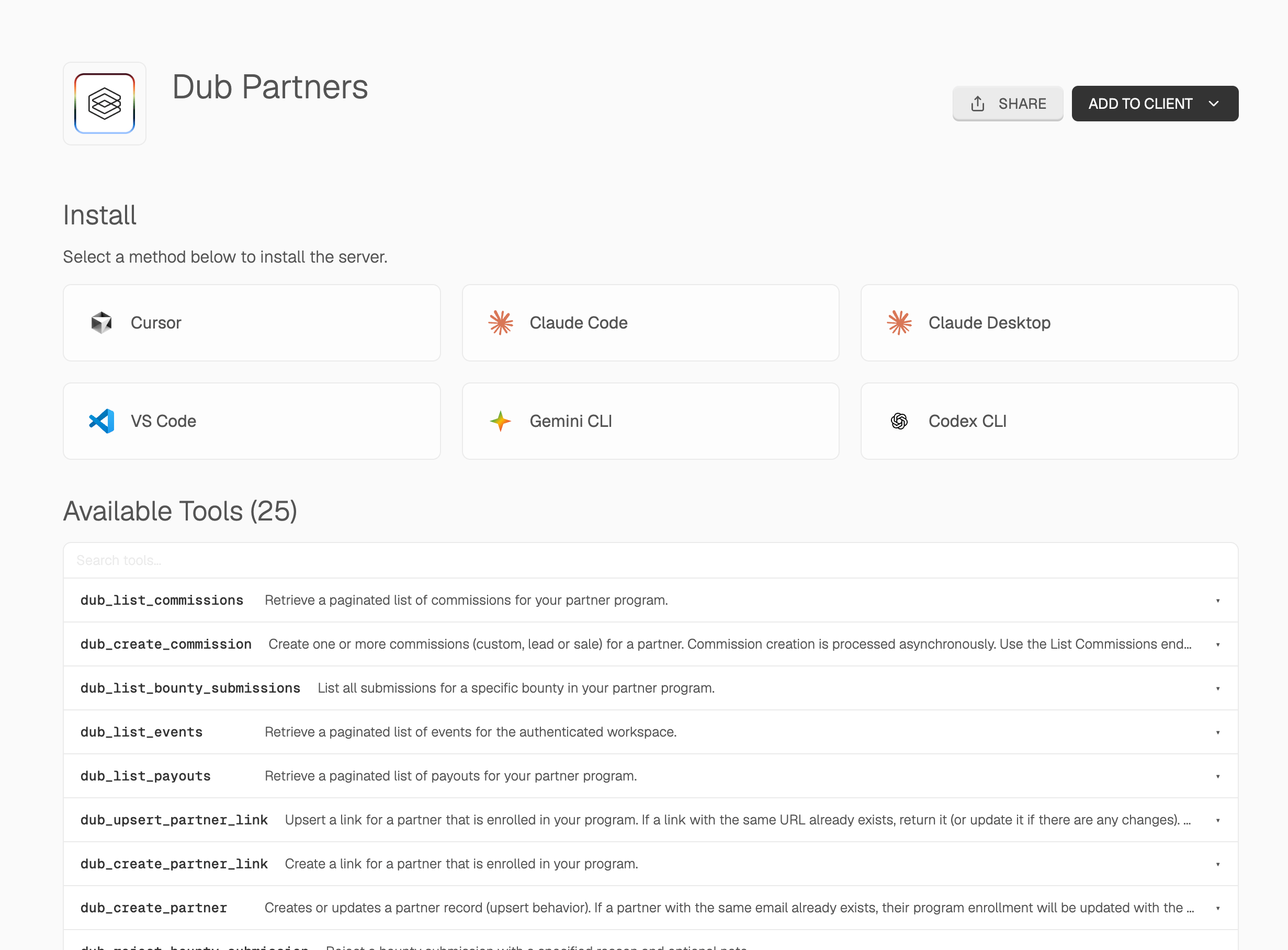
The Dub [MCP server](https://mcp.dub.sh/mcp/dub-partners) gives your AI agent native access to the full Dub platform through a single integration. You can manage your partner program, review applications, update commissions, and track attribution using natural language.
* **Partners** — Create or update partners, list all partners, deactivate, or ban partners from your program
* **Partner links** — Create and upsert links for enrolled partners
* **Applications** — List, approve, and reject pending partner applications
* **Analytics** — Retrieve analytics and list events for any partner, [partner groups](/help/article/partner-groups), or their specific links
* **Customers** — List, retrieve, update, and delete customers
* **Tracking** — Track lead, sale, and deep link open events
* **Bounties** — List, approve, and reject bounty submissions
* **Commissions** — List and update commissions (e.g. for refunds or fraud)
* **Payouts** — List payouts for your partner program
Here are some real examples of what your agent can do with these tools:
* Triage pending partner applications and approve or reject them in bulk
* Adjust commissions after a refund or flag suspicious activity
* Pull attribution analytics for a top partner or [partner group](/help/article/partner-groups)
* Create partner links and track lead or sale conversion events
Looking for the [Dub Links](https://dub.co/links) MCP server? Check out the
[Dub Links MCP server docs](https://mcp.dub.sh/mcp/dub-links).
## Remote MCP Server (recommended)
Dub's MCP server is hosted at:
```
https://mcp.dub.sh/mcp/dub-partners
```
Connect any MCP client that supports remote servers (Streamable HTTP). There's nothing to install and no local process to run, which makes it the best option for web-based clients like Claude and hosted agent platforms.
When you connect, your client opens a browser window to log in to Dub and approve access using OAuth.
You can install the Dub MCP server as a [custom connector in
Claude](https://claude.ai/new#settings/customize-connectors):
To install only the MCP server, add it manually in Claude (web or desktop) from **Settings** > **Connectors** > **Add custom connector**:
```
https://mcp.dub.sh/mcp/dub-partners
```
You can install the Dub MCP server as a [ChatGPT
plugin](https://chatgpt.com/plugins):
Make sure to enable [Developer Mode](https://developers.openai.com/api/docs/guides/developer-mode) in ChatGPT first before installing the plugin.
Open the command palette and choose **Cursor Settings** → **MCP** → **Add new global MCP server**.
```json theme={null}
{
"mcpServers": {
"dub": {
"url": "https://mcp.dub.sh/mcp/dub-partners"
}
}
}
```
To use GitHub Copilot in VS Code, add the following to your `settings.json`:
```json theme={null}
{
"mcp": {
"servers": {
"dub": {
"type": "http",
"url": "https://mcp.dub.sh/mcp/dub-partners"
}
}
}
}
```
In Windsurf's Settings, navigate to **Agents** > **MCP servers**, and click **+ Add** to add a new server.
```json theme={null}
{
"mcpServers": {
"dub": {
"serverUrl": "https://mcp.dub.sh/mcp/dub-partners"
}
}
}
```
In Warp's Settings, navigate to **Agents** > **MCP servers**, and click **+ Add** to add a new server.
```json theme={null}
{
"dub": {
"serverUrl": "https://mcp.dub.sh/mcp/dub-partners"
}
}
```
***
*If your client runs somewhere a browser login isn't possible* (a server, CI, or a headless agent), pass a [Dub API key](/docs/api-reference/authentication#api-keys) in the `Mcp-Dub-Token` header instead of using OAuth.
```bash theme={null}
claude mcp add dub-partners \
--transport http https://mcp.dub.sh/mcp/dub-partners \
--header "Mcp-Dub-Token: dub_xxxxxx"
```
For clients configured with JSON (Cursor, Windsurf, and others), add a `Mcp-Dub-Token` header:
```json theme={null}
{
"mcpServers": {
"dub": {
"url": "https://mcp.dub.sh/mcp/dub-partners",
"headers": {
"Mcp-Dub-Token": "dub_xxxxxx"
}
}
}
}
```
## Local MCP Server
If your MCP client doesn't support connecting directly to a remote HTTP endpoint, use [`mcp-remote`](https://www.npmjs.com/package/mcp-remote) to run a local process that proxies requests to Dub's hosted server. You can integrate it into any supported MCP client using `npx`. You'll need a [Dub API key](/docs/api-reference/authentication#api-keys).
Choose your client below to get started. Remember to replace `dub_xxxxxx` with your actual API key.
### Stdio Transport (Default)
```bash theme={null}
claude mcp add dub-partners \
--env MCP_DUB_TOKEN=dub_xxxxxx \
-- npx -y mcp-remote@0.1.25 https://mcp.dub.sh/mcp/dub-partners \
--header "Mcp-Dub-Token:\${MCP_DUB_TOKEN}"
```
````bash codex mcp add dub-partners \ --env MCP_DUB_TOKEN=dub_xxxxxx \ -- npx theme={null}
-y mcp-remote@0.1.25 https://mcp.dub.sh/mcp/dub-partners \ --header
"Mcp-Dub-Token:\${MCP_DUB_TOKEN}" ```
Open the command palette and choose **Cursor Settings** → **MCP** → **Add new global MCP server**.
```json
{
"mcpServers": {
"dub": {
"command": "npx",
"args": [
"-y",
"mcp-remote@0.1.25",
"https://mcp.dub.sh/mcp/dub-partners",
"--header",
"Mcp-Dub-Token:${MCP_DUB_TOKEN}"
],
"env": {
"MCP_DUB_TOKEN": "dub_xxxxxx"
}
}
}
}
````
Open **Claude Desktop** settings → **Developer** tab → **Edit Config** and add the following:
```json theme={null}
{
"mcpServers": {
"dub": {
"command": "npx",
"args": [
"-y",
"mcp-remote@0.1.25",
"https://mcp.dub.sh/mcp/dub-partners",
"--header",
"Mcp-Dub-Token:${MCP_DUB_TOKEN}"
],
"env": {
"MCP_DUB_TOKEN": "dub_xxxxxx"
}
}
}
}
```
To use GitHub Copilot in VS Code, add the following to your `settings.json`:
```json theme={null}
{
"mcp": {
"servers": {
"dub": {
"command": "npx",
"args": [
"-y",
"mcp-remote@0.1.25",
"https://mcp.dub.sh/mcp/dub-partners",
"--header",
"Mcp-Dub-Token:${MCP_DUB_TOKEN}"
],
"env": {
"MCP_DUB_TOKEN": "dub_xxxxxx"
}
}
}
}
}
```
```json theme={null}
{
"mcpServers": {
"dub": {
"command": "npx",
"args": [
"-y",
"mcp-remote@0.1.25",
"https://mcp.dub.sh/mcp/dub-partners",
"--header",
"Mcp-Dub-Token:${MCP_DUB_TOKEN}"
],
"env": {
"MCP_DUB_TOKEN": "dub_xxxxxx"
}
}
}
}
```
Add to your `opencode.json` config:
```json theme={null}
{
"$schema": "https://opencode.ai/config.json",
"mcp": {
"dub": {
"type": "local",
"command": [
"npx",
"-y",
"mcp-remote@0.1.25",
"https://mcp.dub.sh/mcp/dub-partners",
"--header",
"Mcp-Dub-Token:${MCP_DUB_TOKEN}"
],
"enabled": true,
"environment": {
"MCP_DUB_TOKEN": "dub_xxxxxx"
}
}
}
}
```
```json theme={null}
{
"mcpServers": {
"dub": {
"command": "npx",
"args": [
"-y",
"mcp-remote@0.1.25",
"https://mcp.dub.sh/mcp/dub-partners",
"--header",
"Mcp-Dub-Token:${MCP_DUB_TOKEN}"
],
"env": {
"MCP_DUB_TOKEN": "dub_xxxxxx"
}
}
}
}
```
In Warp's Settings, navigate to **Agents** > **MCP servers**, and click **+ Add** to add a new server.
```json theme={null}
{
"dub": {
"command": "npx",
"args": [
"-y",
"mcp-remote@0.1.25",
"https://mcp.dub.sh/mcp/dub-partners",
"--header",
"Mcp-Dub-Token:${MCP_DUB_TOKEN}"
],
"env": {
"MCP_DUB_TOKEN": "dub_xxxxxx"
}
}
}
```
### Environment variables
* `MCP_DUB_TOKEN`: Your Dub API key (used by `mcp-remote` and referenced in client configs as `${MCP_DUB_TOKEN}`)
Store your API key in the `env` block or an environment variable rather than
hardcoding it in shared config files when possible.
## MCP Server tools
The Dub [MCP server](https://mcp.dub.sh/mcp/dub-partners) gives your AI agent native access to the full Dub platform through a single integration. You can manage your partner program, review applications, update commissions, and track attribution using natural language.
* **Partners** — Create or update partners, list all partners, deactivate, or ban partners from your program
* **Partner links** — Create and upsert links for enrolled partners
* **Applications** — List, approve, and reject pending partner applications
* **Analytics** — Retrieve analytics and list events for any partner, [partner groups](/help/article/partner-groups), or their specific links
* **Customers** — List, retrieve, update, and delete customers
* **Tracking** — Track lead, sale, and deep link open events
* **Bounties** — List, approve, and reject bounty submissions
* **Commissions** — List and update commissions (e.g. for refunds or fraud)
* **Payouts** — List payouts for your partner program
Here are some real examples of what your agent can do with these tools:
* Triage pending partner applications and approve or reject them in bulk
* Adjust commissions after a refund or flag suspicious activity
* Pull attribution analytics for a top partner or [partner group](/help/article/partner-groups)
* Create partner links and track lead or sale conversion events