

- Dub (Actions) Destination – Tracking conversion events on Dub directly from Segment
- Dub Source – Sending customer events from Dub to Segment
Prerequisites
First, you’ll need to enable conversion tracking for your Dub links to be able to start tracking conversions:Option 1: On a workspace-level
Option 1: On a workspace-level
To enable conversion tracking for all future links in a workspace, you can do the following:
To enable conversion tracking for all future links in a workspace, you can do the following: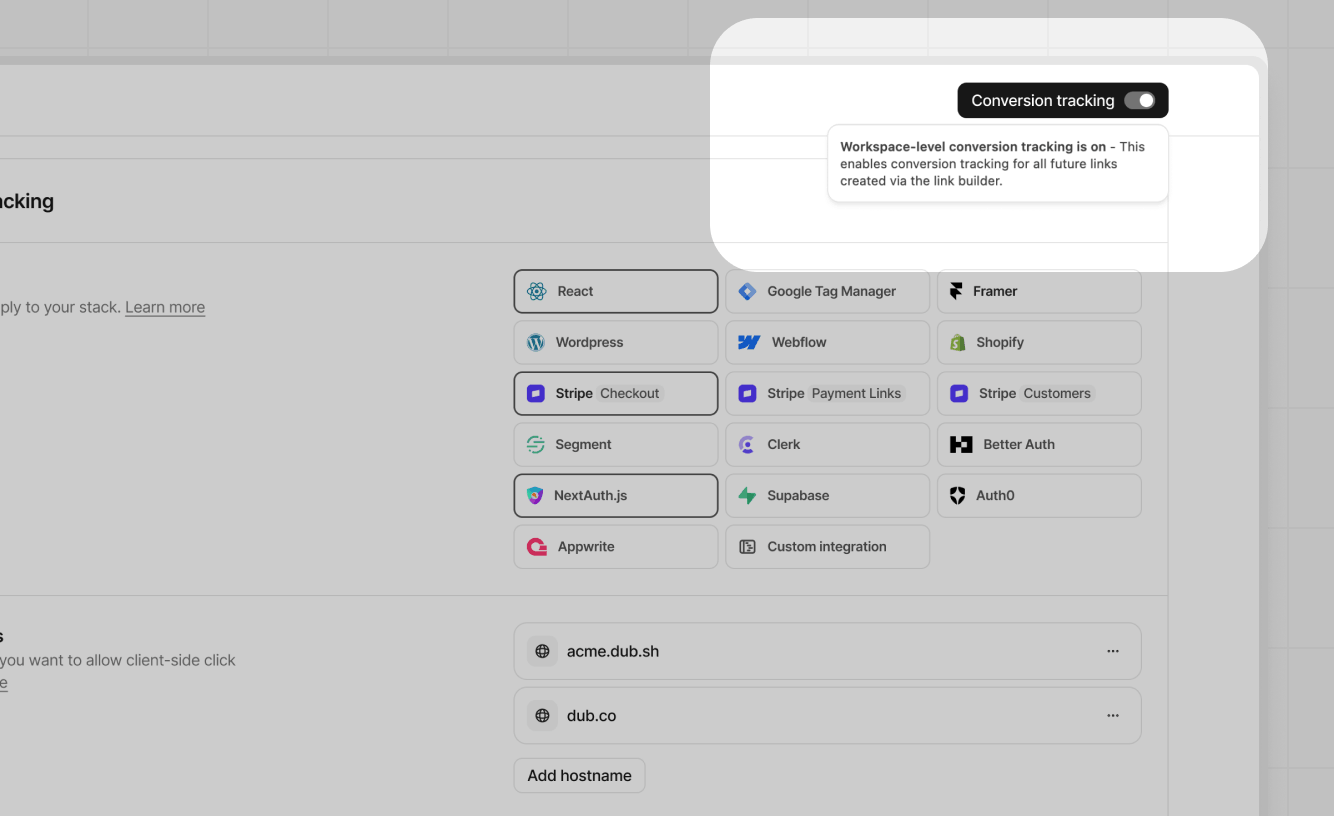
- Navigate to your workspace’s Tracking settings page.
- Toggle the Workspace-level Conversion Tracking switch to enable conversion tracking for the workspace.
Option 2: On a link-level
Option 2: On a link-level
If you don’t want to enable conversion tracking for all your links in a workspace, you can also opt to enable it on a link-level.To enable conversion tracking for a specific link, open the Dub Link Builder for a link and toggle the Conversion Tracking switch.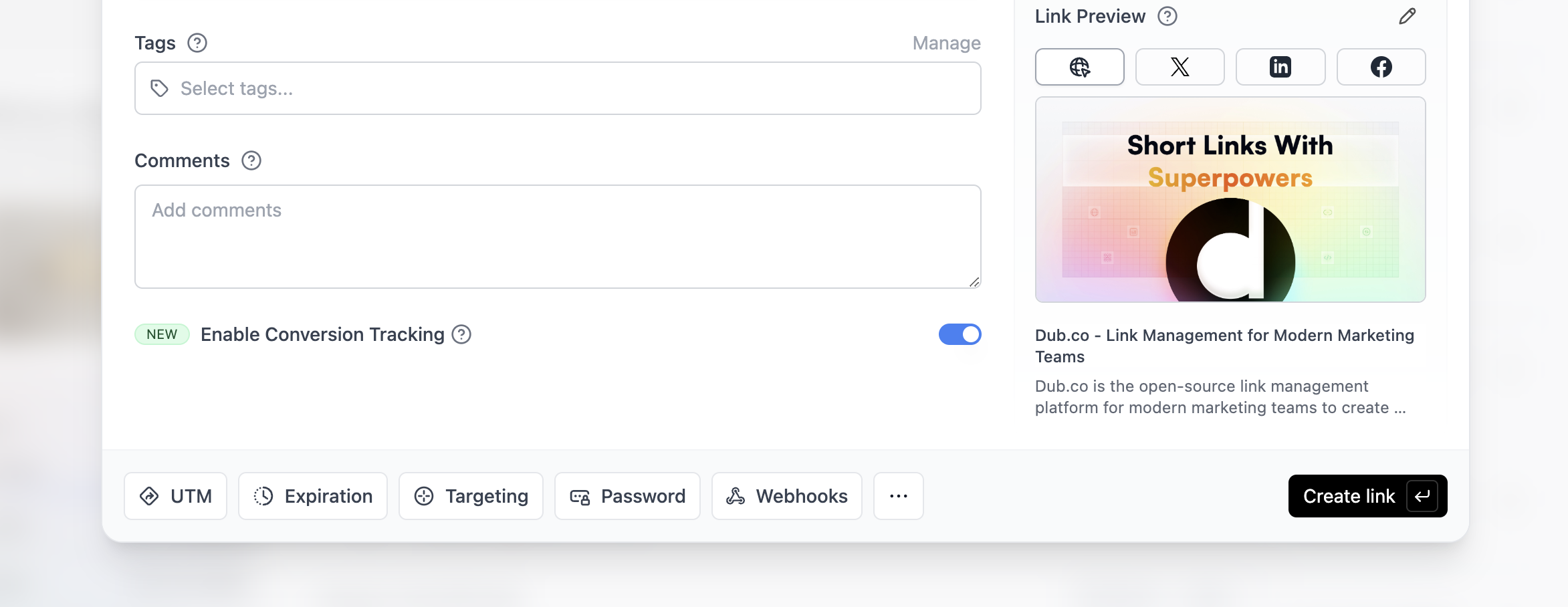
Option 3: Via the API
Option 3: Via the API
Alternatively, you can also enable conversion tracking programmatically via the Dub API. All you need to do is pass
trackConversion: true when creating or updating a link:React
Manual installation
Framer
Shopify
WordPress
Webflow
Google Tag Manager
You can verify the installation with the following tests:
- Open the browser console and type in
_dubAnalytics– if the script is installed correctly, you should see the_dubAnalyticsobject in the console. - Add the
?dub_id=testquery parameter to your website URL and make sure that thedub_idcookie is being set in your browser.
- The analytics script was added to the
<head>section of the page - If you’re using a content delivery network (CDN), make sure to purge any cached content
Configure Segment Action
Next, configure Segment Dub (Actions) to track sales conversion events.1
Add Dub (Actions) destination
Head to Segment Dub (Actions) and add the destination to your Segment workspace.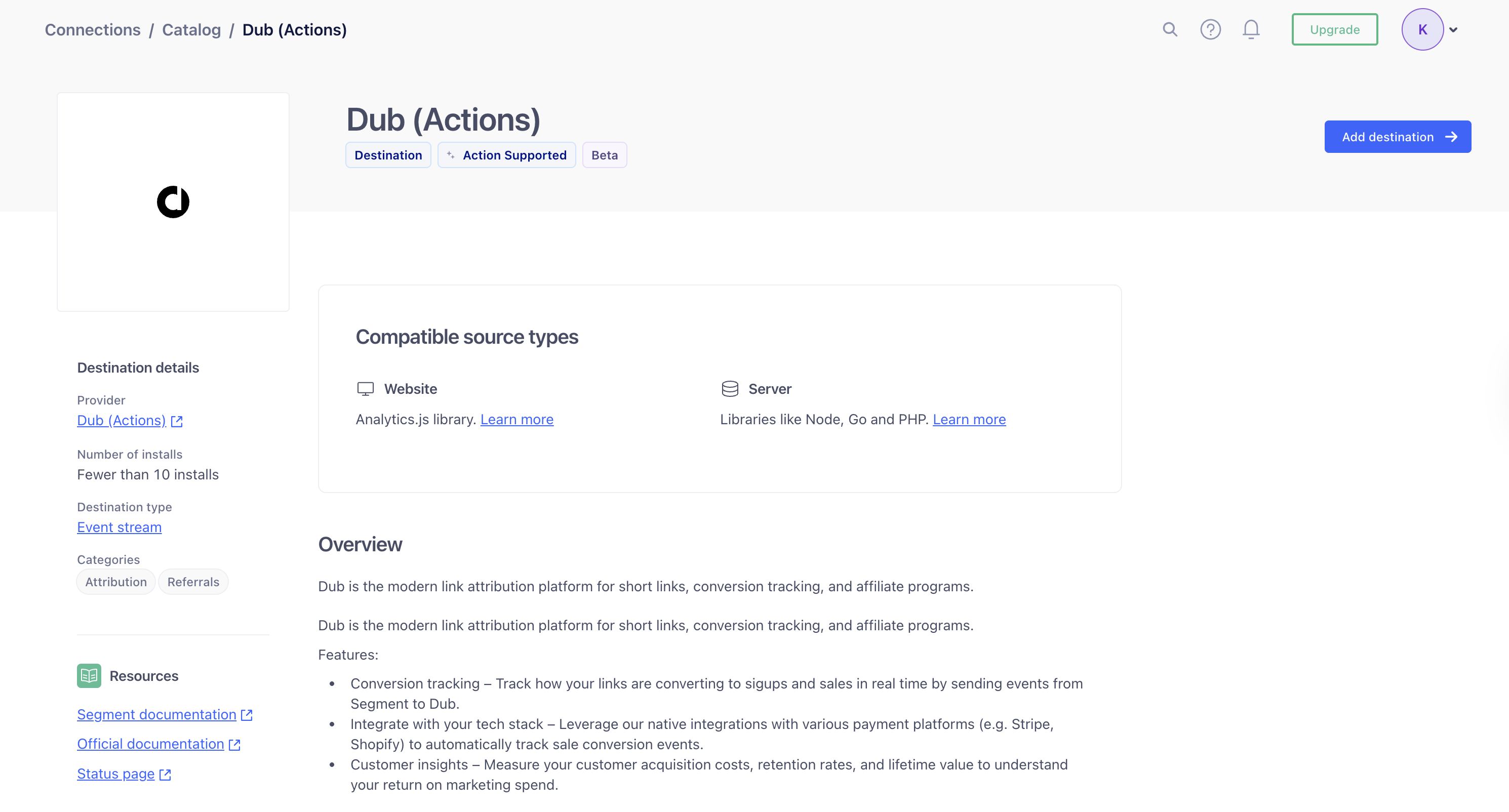
2
Configure Dub API Key
In the Dub (Actions) destination settings, fill out the following fields: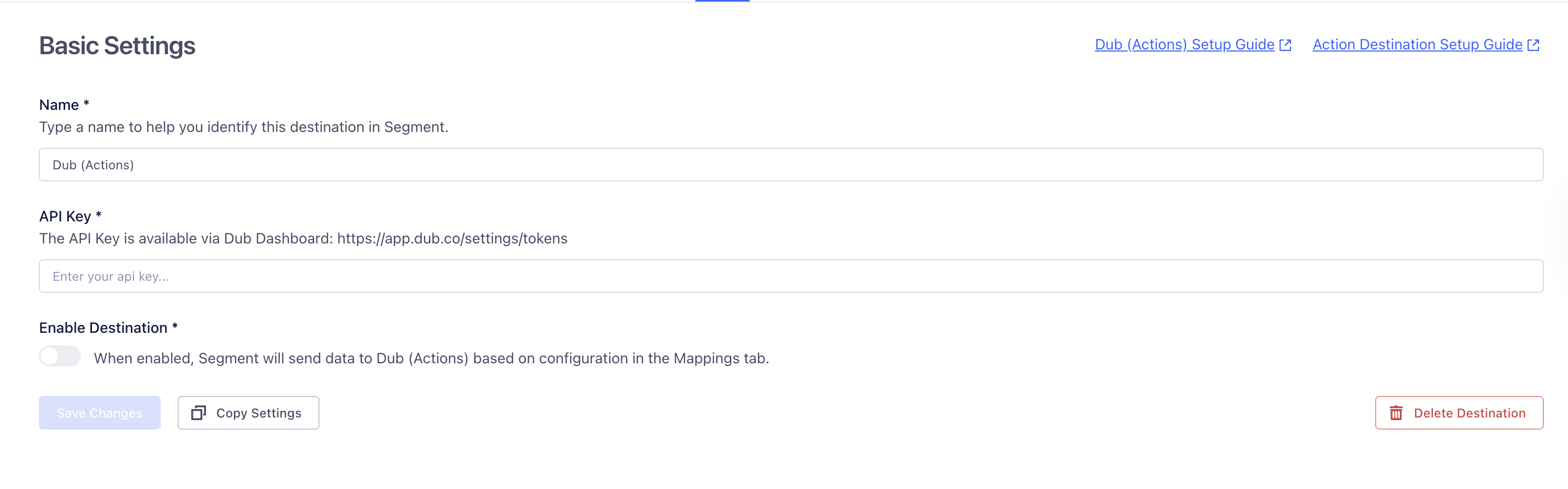
- Name: Enter a name to help you identify this destination in Segment.
- API Key: Enter your Dub API key. You can find this in the Dub Dashboard.
- Enable Destination: Toggle this on to allow Segment to send data to Dub.
3
Add Mapping
Next, depending on the event you want to track, choose the corresponding action from the list of available actions: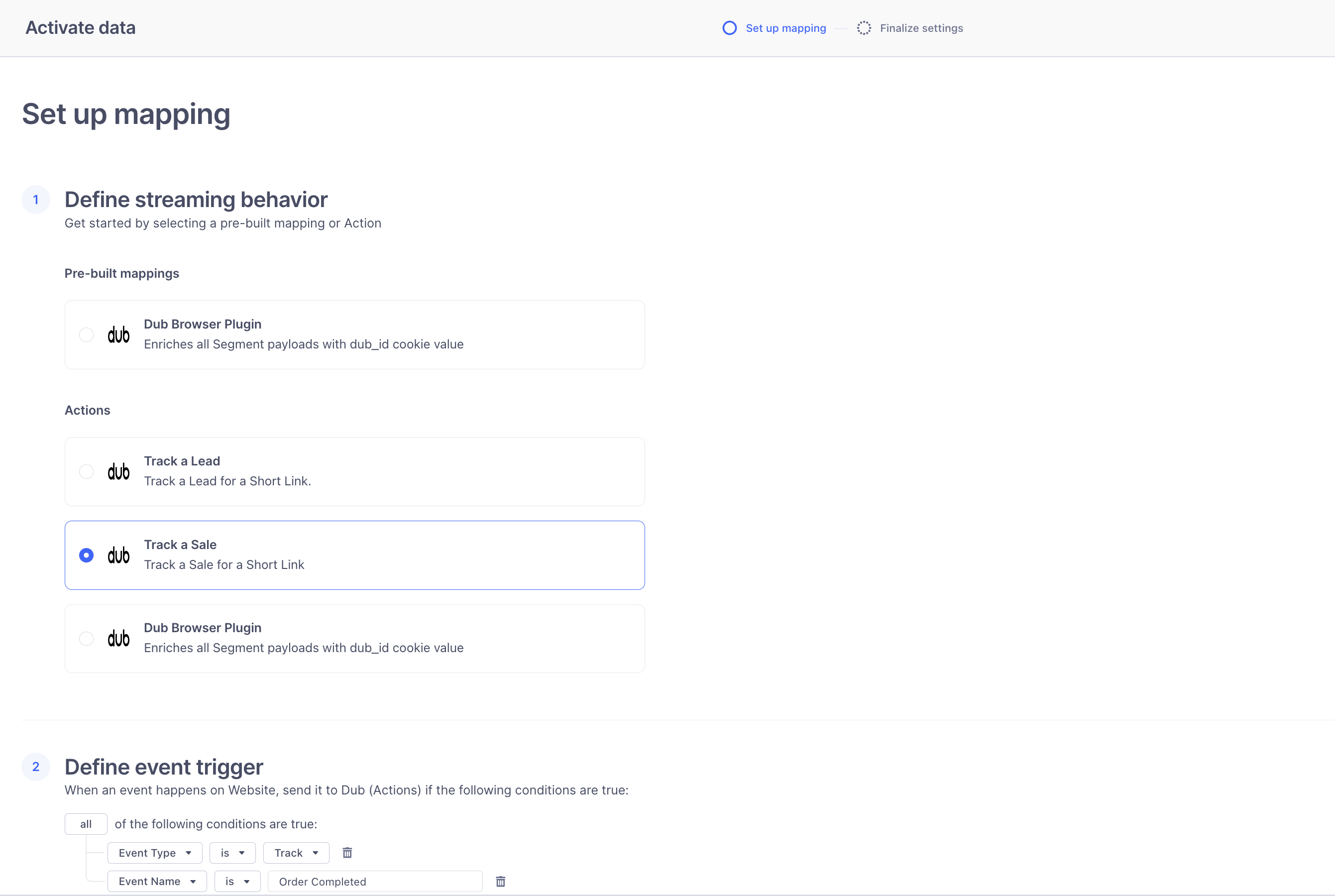
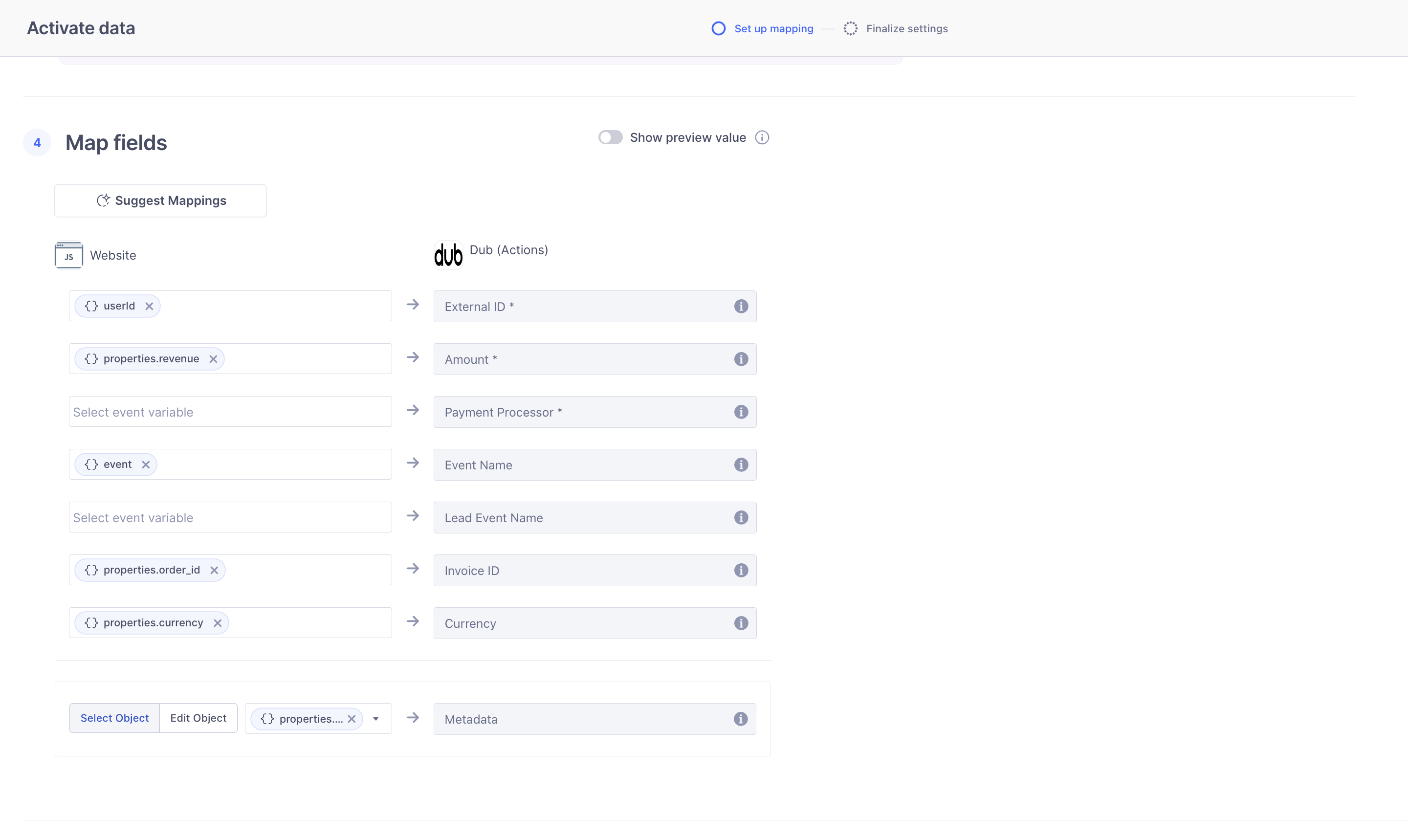
4
Send conversion events to Dub
On the server side, you’ll use the Once the event is tracked, Segment will forward the conversion data to Dub based on the mappings you’ve configured.
@segment/analytics-node SDK to send conversion events to Segment.Make sure to include relevant properties in the payload:Supported attributes
- Lead event
- Sale event
Here are the properties you can include when sending a lead event:
View conversion results
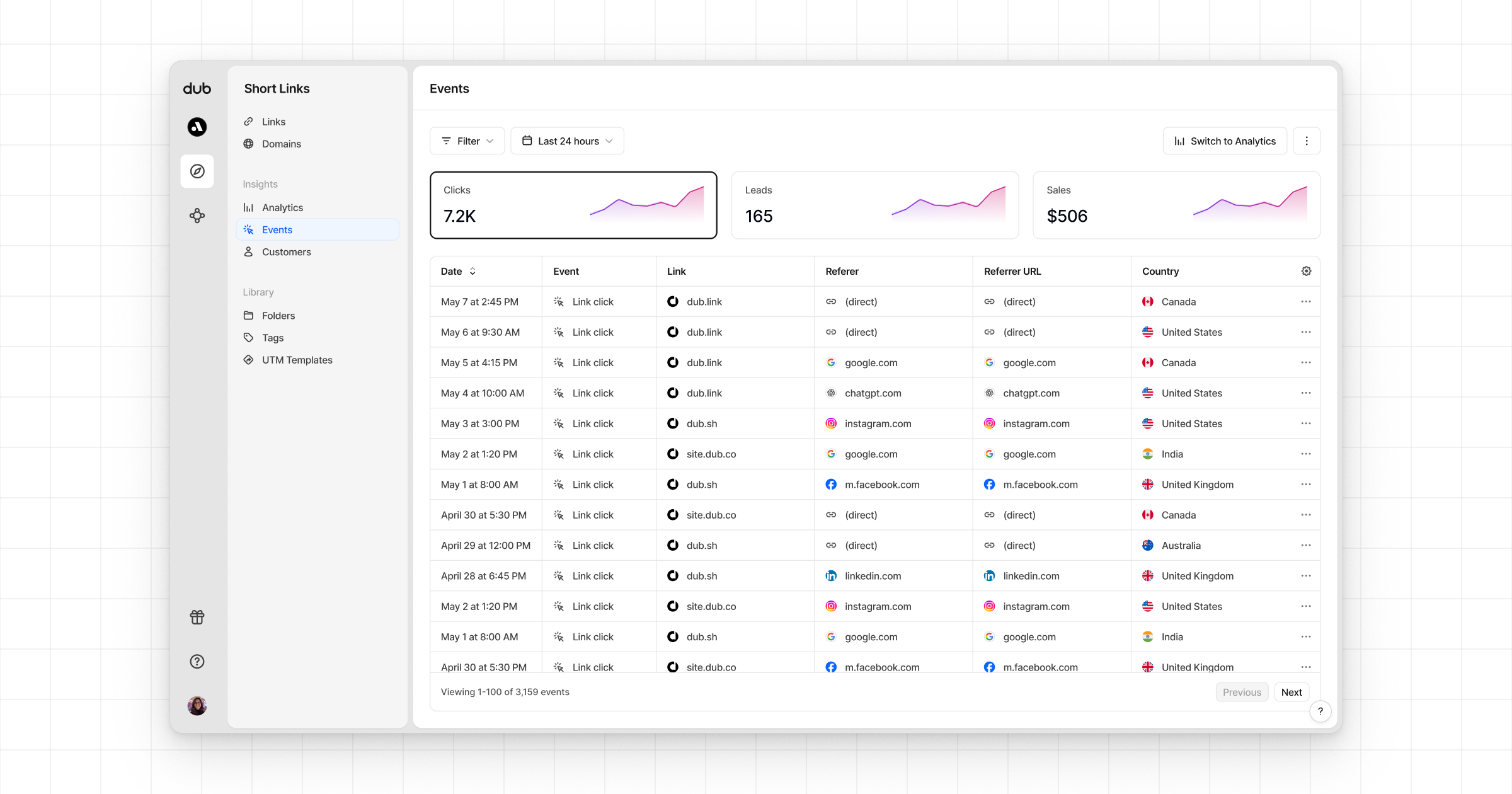
And that’s it – you’re all set! You can now sit back, relax, and watch your conversion revenue grow. We provide 3 different views to help you understand your conversions:- Time-series: A time-series view of the number clicks, leads and sales.
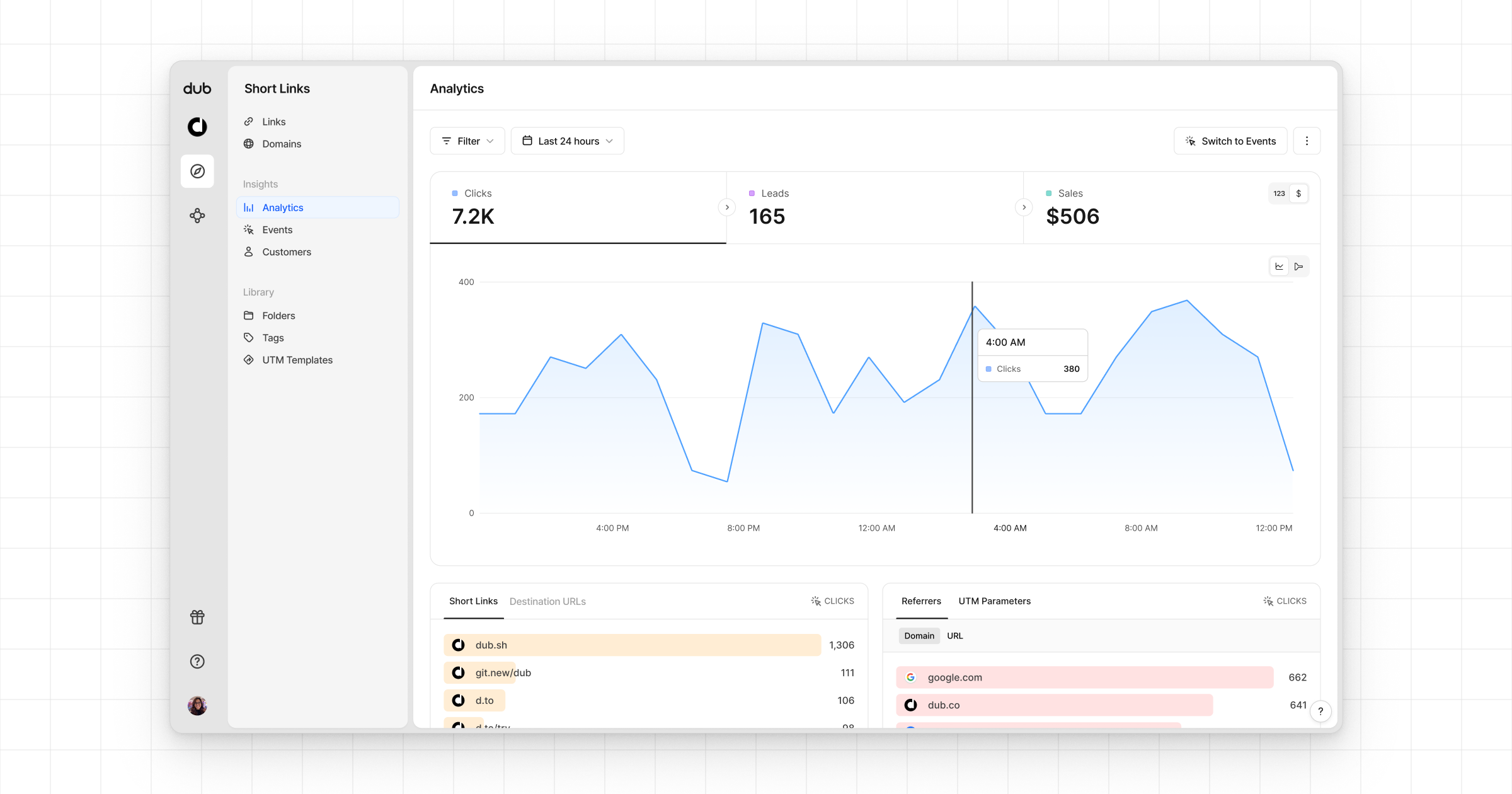
- Funnel chart: A funnel chart view visualizing the conversion & dropoff rates across the different steps in the conversion funnel (clicks → leads → sales).
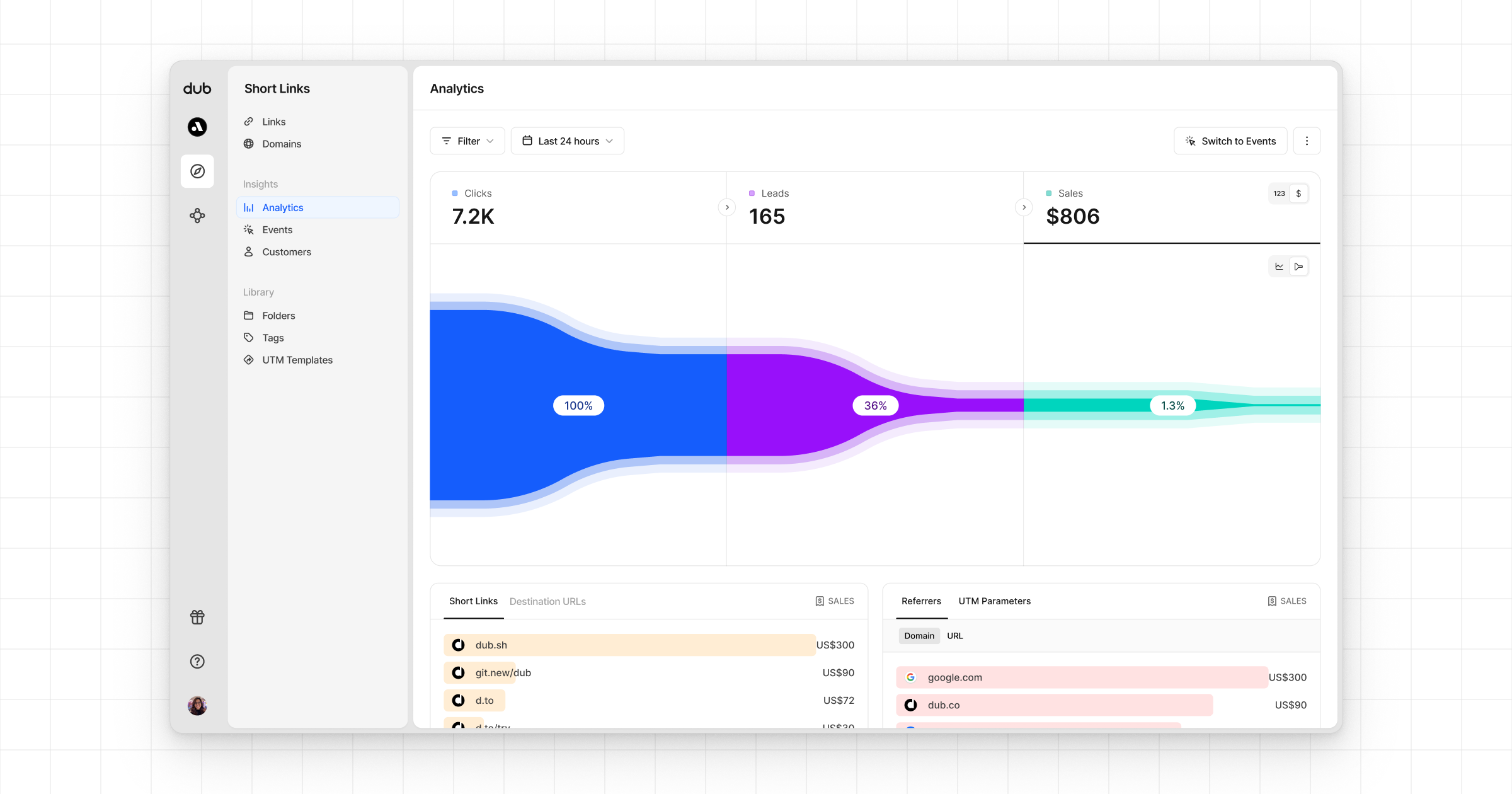
- Real-time events stream: A real-time events stream of every single conversion event that occurs across all your links in your workspace.
Example apps
Segment + Next.js App Router Example
Next.js app using Segment to track sales.