How to view your joined programs
From the All programs navigation, click Programs to view all the partner programs you’ve joined. If you haven’t joined any programs, you’ll see an empty state here.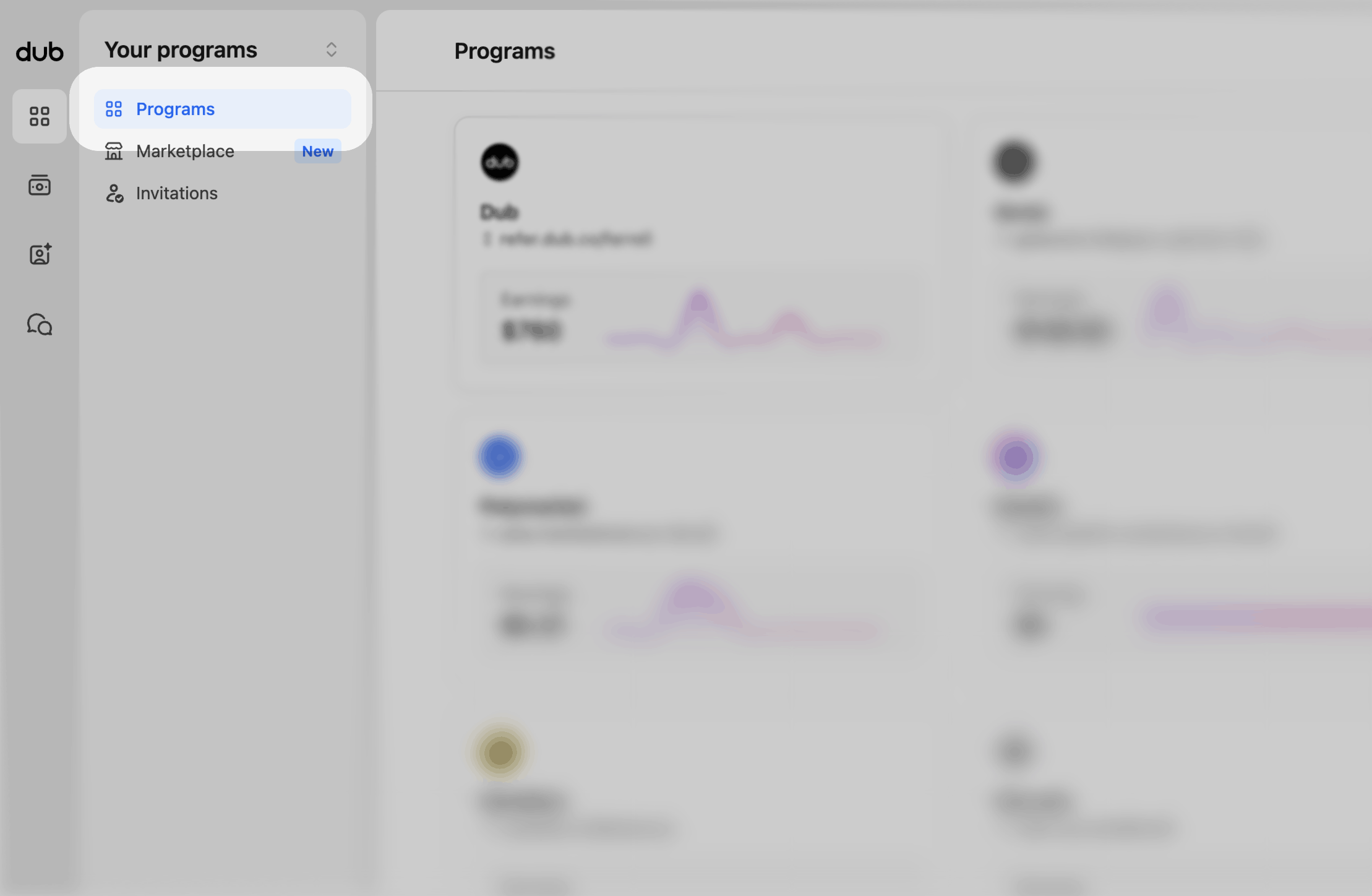
1
Program grid
On the Programs page, we show you a grid of all the programs you’ve
joined. We also show you your default referral link and your total earnings.
Click on the card to view that program page.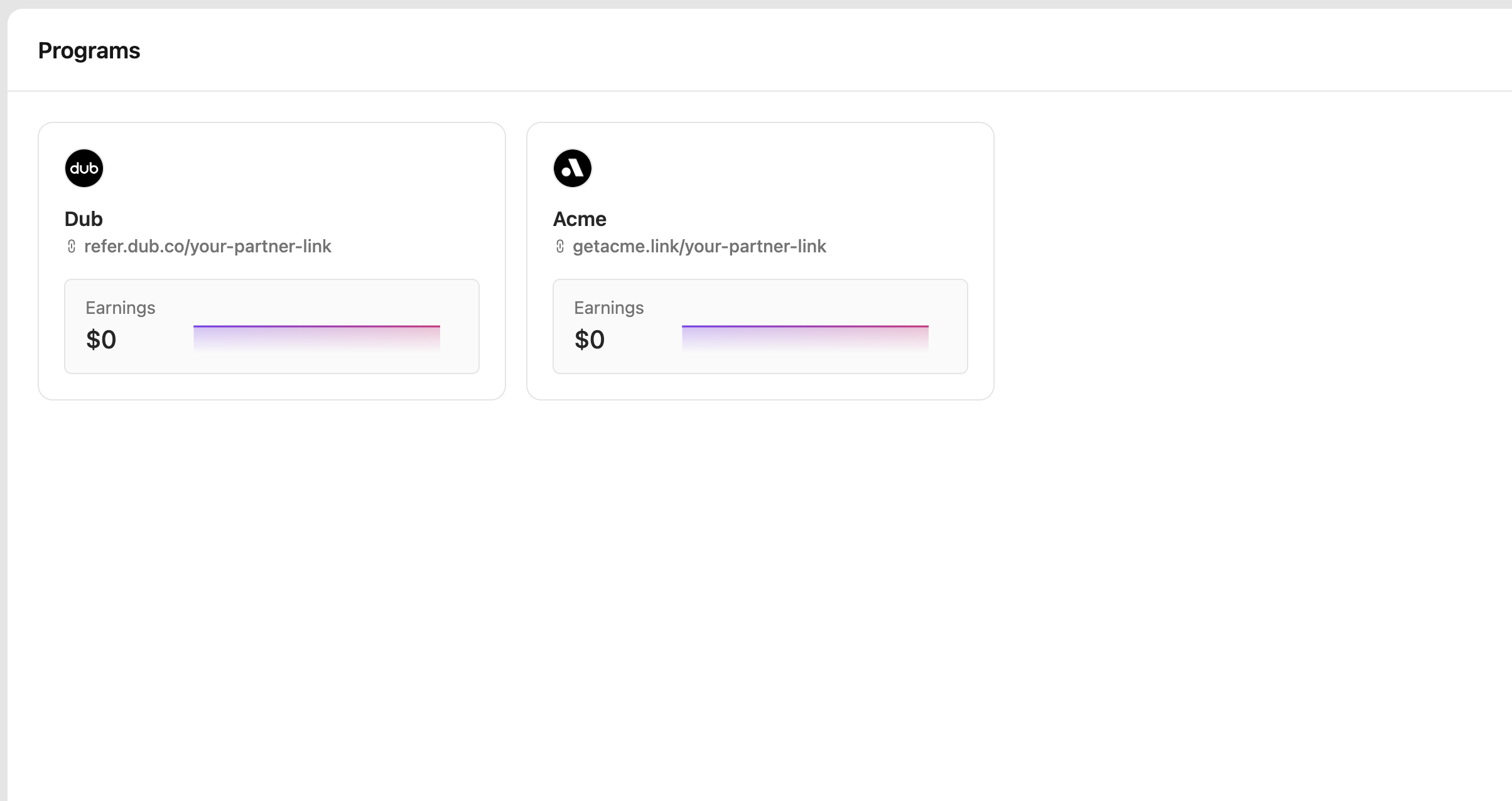
2
All programs dropdown
The other way you can navigate to your programs is to click All programs
at the top of the sidebar, and that will open a dropdown. From here, you can
search and click on any of the programs listed. You can also click on All
programs in this dropdown, and that will take you back to the grid view
anytime.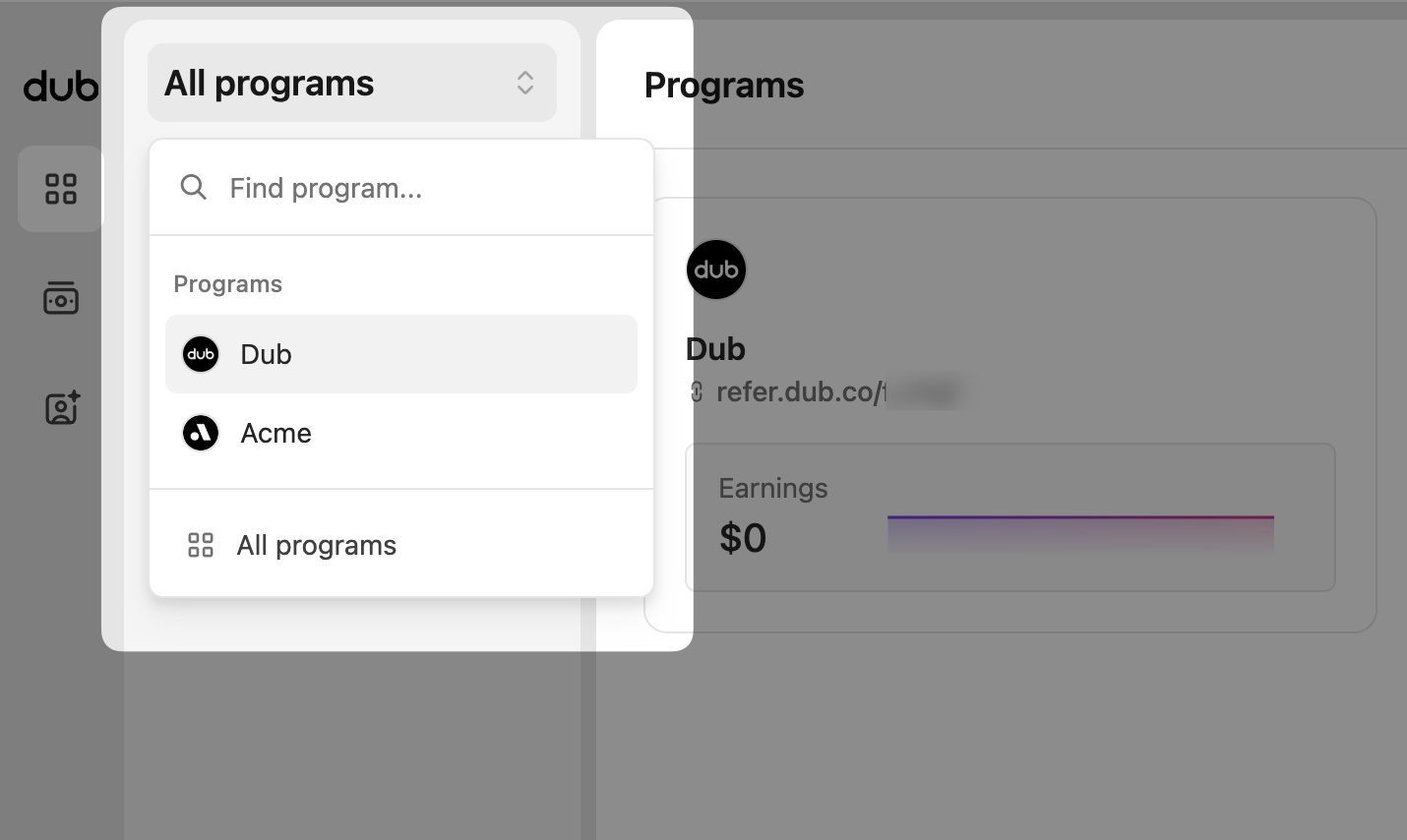
Program pages
Overview
This is your main program overview page, is the first page you’ll want to check to see how your programs are performing.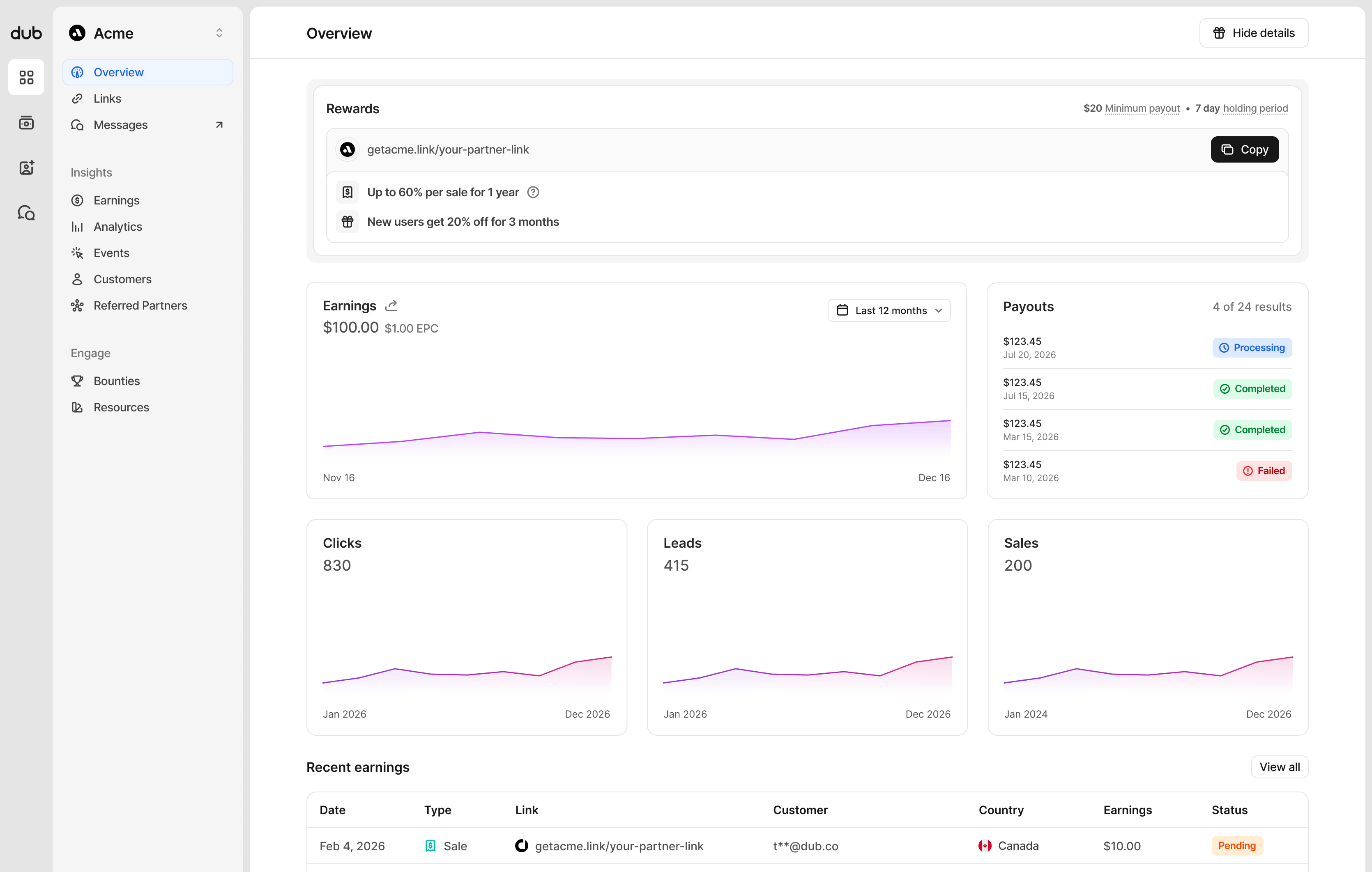
- Program summary - find your default referral link and the rewards and discounts you are eligible for on this program. If you want to hide this section, click the Hide details button in the top right, and it won’t show until you click the button again.
- Program earnings and payouts - see how much you’ve earned over time, and your most recent payouts. The earnings section also allows you to change the date range to view results from further in the past.
- Link analytics - View your clicks, leads and sales for this program, keep track of all their activity.
- Recent earnings - A detailed breakdown of your most recent earnings and their payout status.
Links
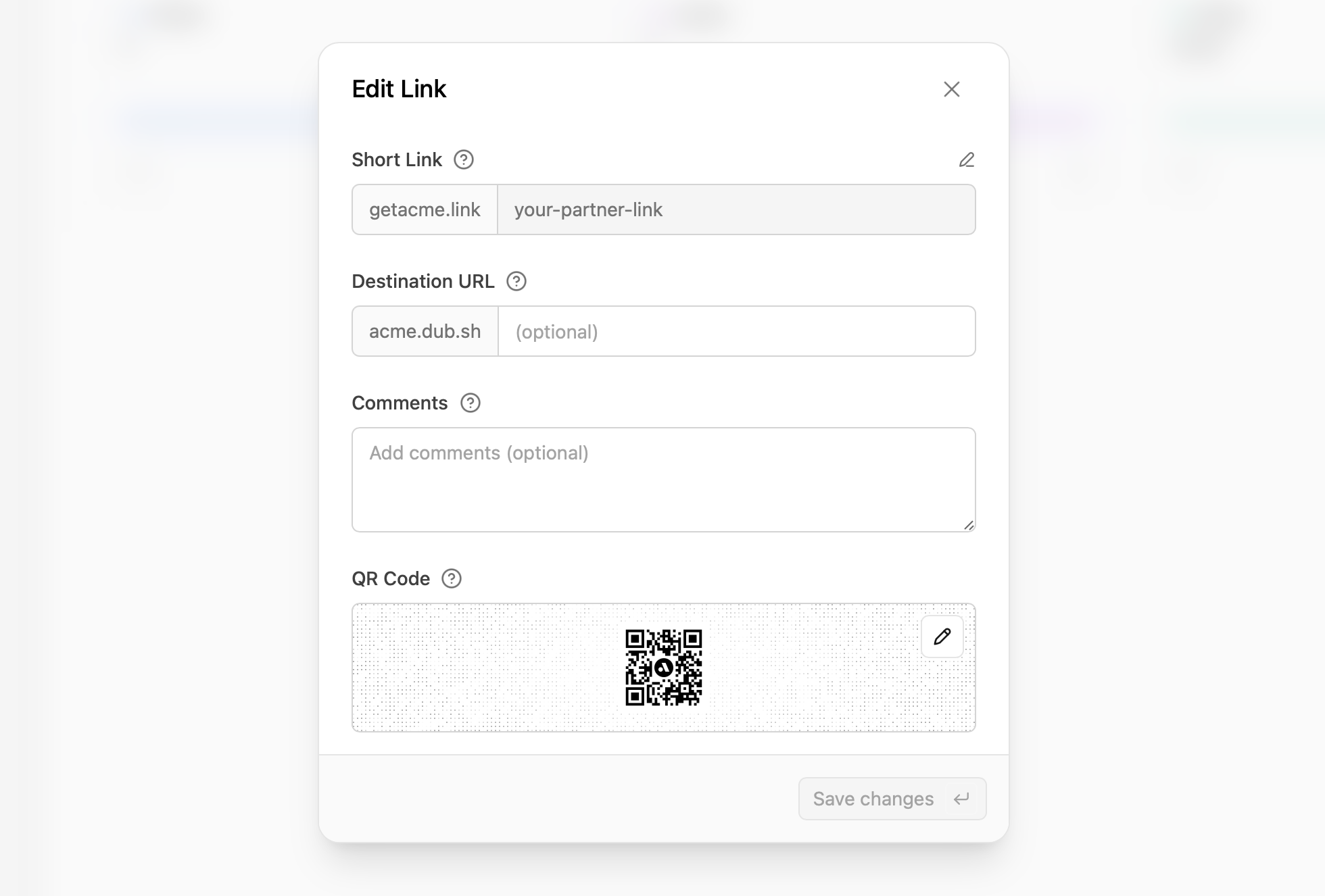
You’ll find all your program referral links on this page, including the clicks, leads, and sales for each.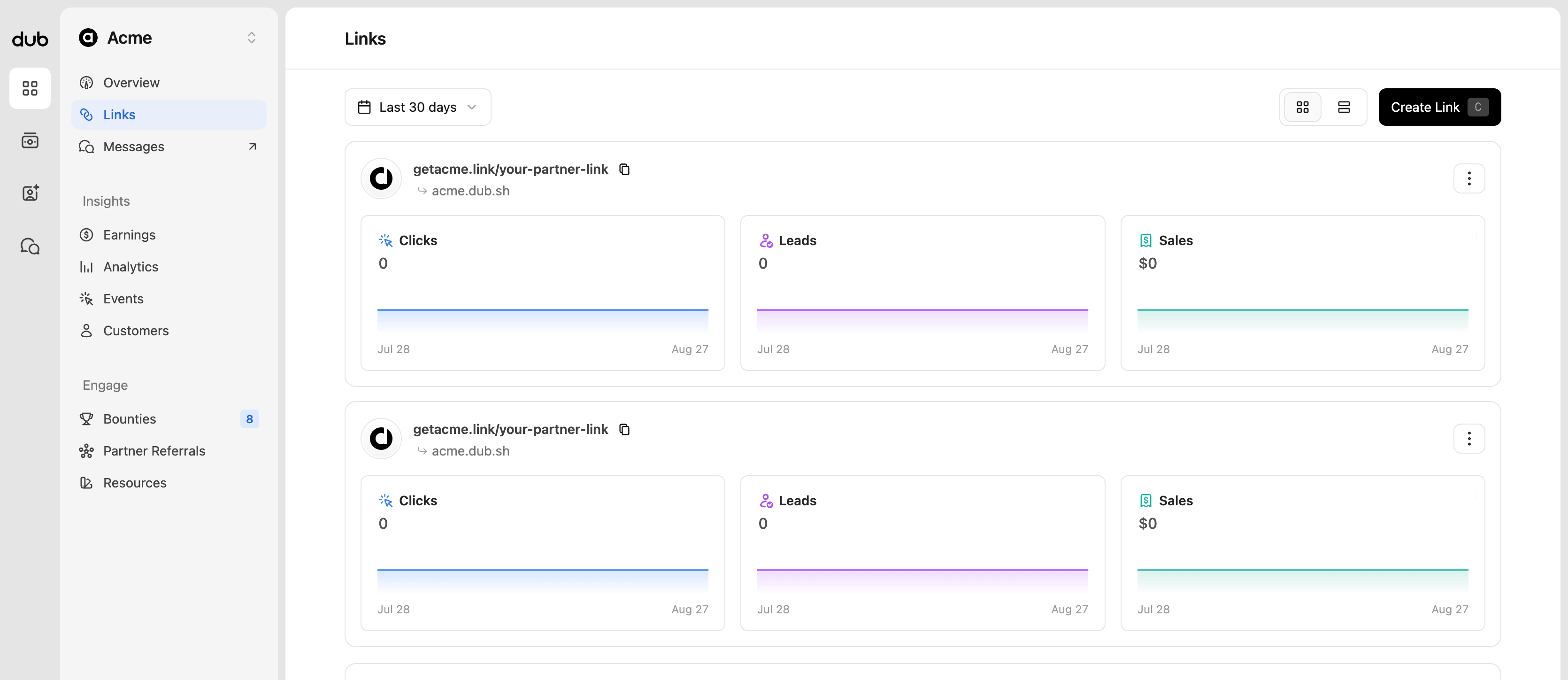
Earnings
View your earnings performance over time and the details associated with each item.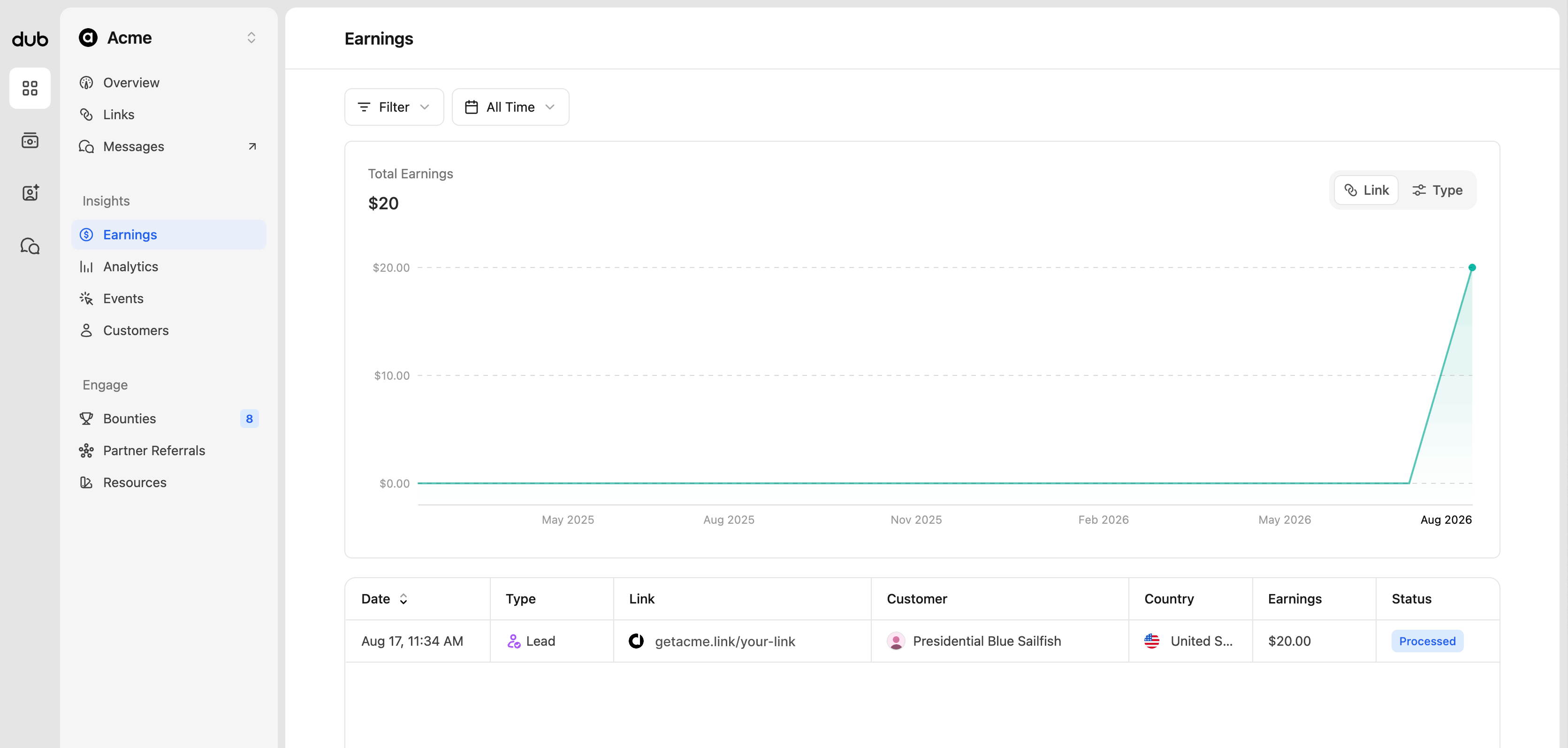
Analytics
View your program performance analytics, and filter and organize by clicks, leads, and sales.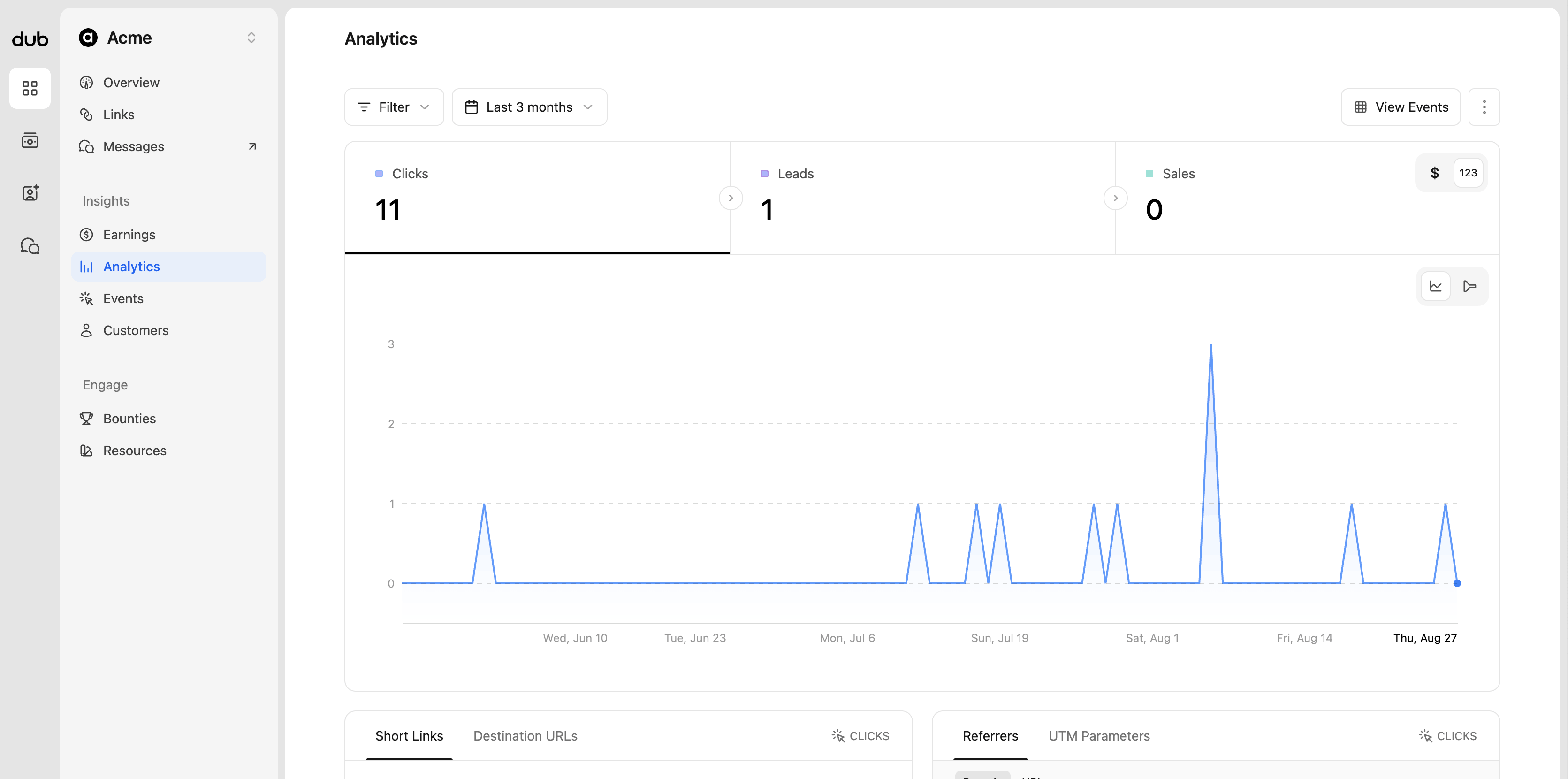
Data toggle
You can change the data displayed by clicking the123 | $ toggle in the top right of the data type section.
By default $ is selected, as it is related directly to your reward earnings. Switching to 123 will change any monetary values to their specific reward count. If the program you’re on has other monetary rewards (clicks, leads, sales), their dollar amount will show as well.

Chart toggle
You can change the chart type displayed by clicking thetime-chart | conversion funnel toggle in the top right of the chart area.


Aggregated data for different facets (top views)
These are more commonly known as the “Top Views” in Dub Analytics. These views show your top links, countries, cities, devices, and more.
- Links - Short Links and Destination URLs
- Referrals - Referrers and UTM Parameters
- Location - Countries, Cities, Regions, and Continents
- Tech - Devices, Browser, OS, and Triggers
Events
View your program events, and filter and organize by clicks, leads, and sales. Dub’s real-time events stream is a detailed, real-time stream of events across each program you’ve joined.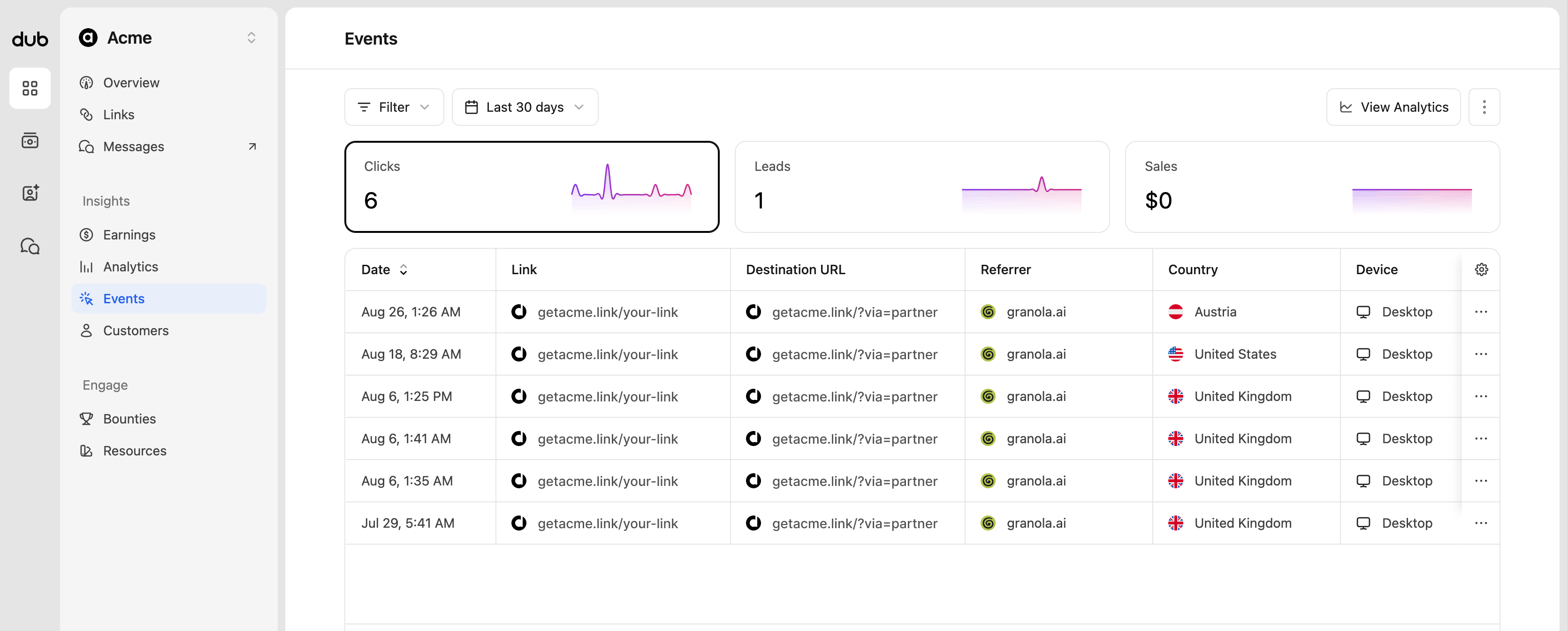
Customers
View all the customers you’ve referred to the program, and track their journey from first click to paid subscription.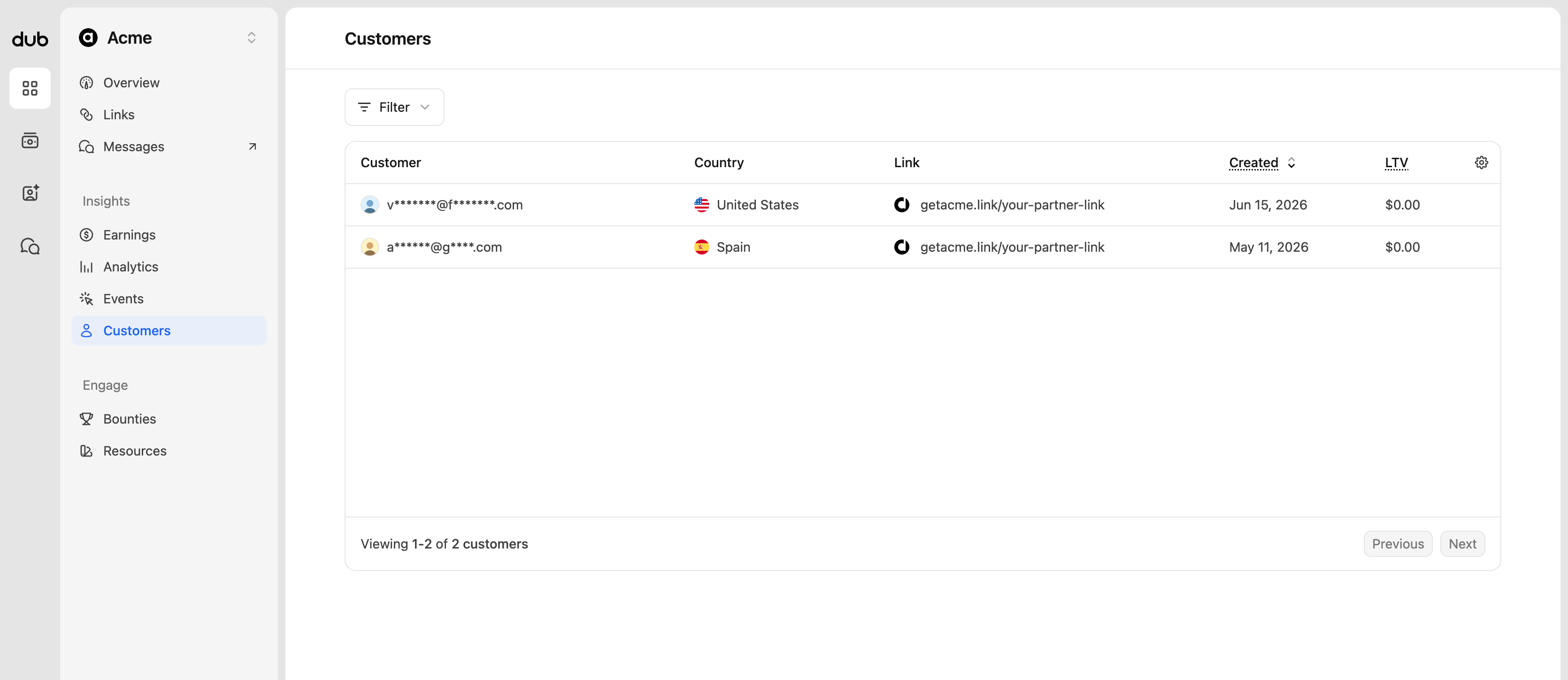
To protect customer privacy, customer emails are partially masked (e.g.
a*****@g****.com) by default. If the program has enabled customer data
sharing, you’ll see full customer emails and names, and be able to search for
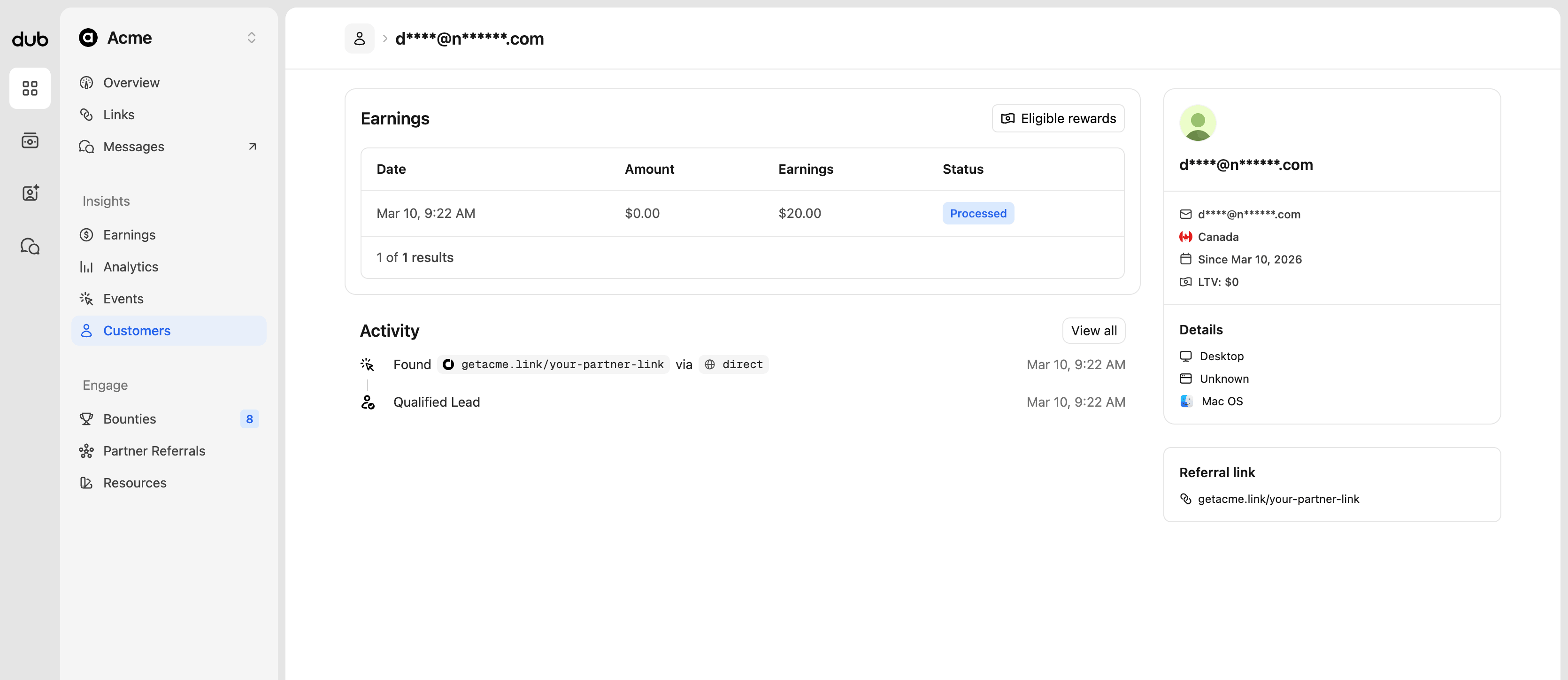
specific customers as well.- Earnings - every sale recorded for that customer, along with your earnings and their payout status. A warning will show here if the customer’s earning period has ended (for programs with a limited reward duration).
- Activity - a real-time timeline of the customer’s journey, from their first click (including the referrer they came from), to lead and sale events.
- Customer details - their country, creation date, lifetime value, device details, and the referral link that brought them to the program.
Bounties
Bounties are opportunities to earn additional rewards from a program – like a cash bonus for reaching a sales milestone or creating content about their product. If a program has active bounties available, you’ll see a count badge next to Bounties in the program navigation.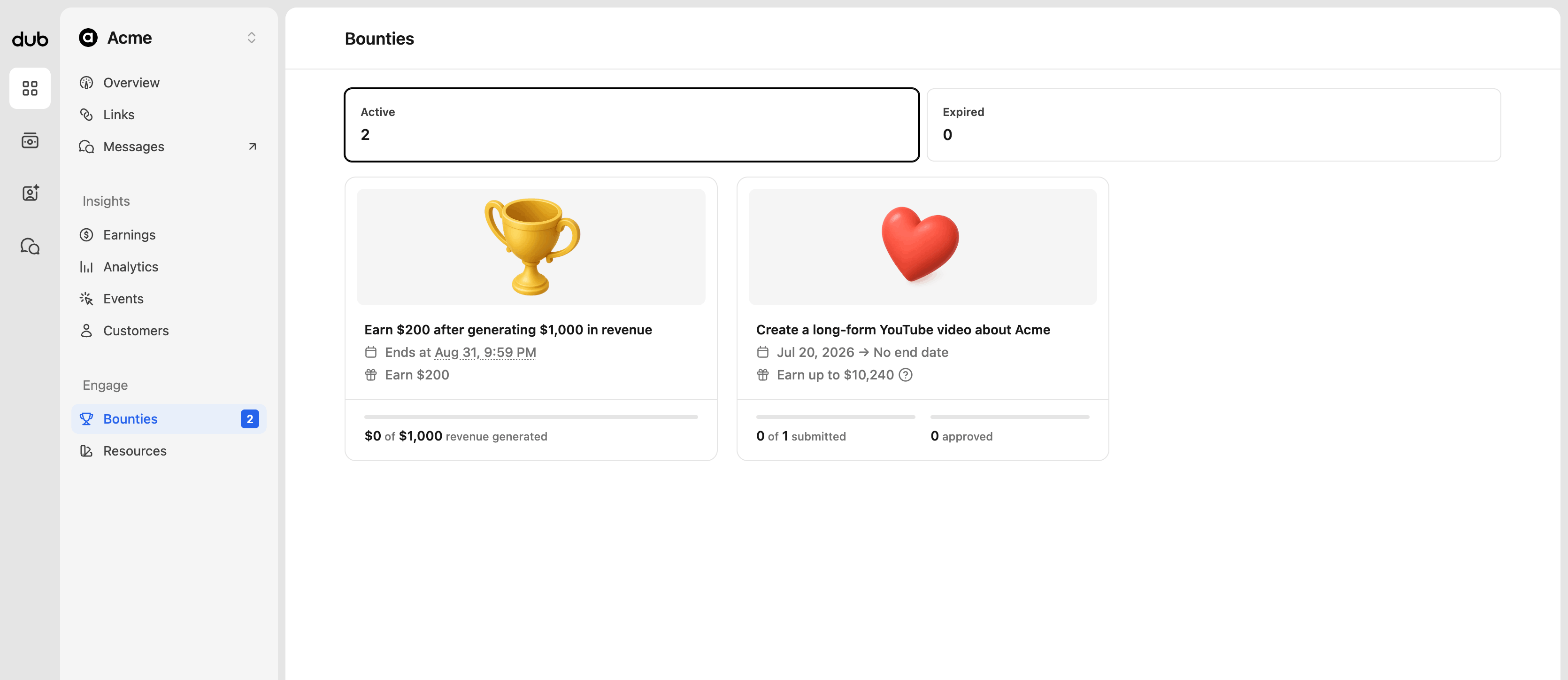
- Performance bounties - reward you for reaching a measurable milestone, like a number of leads, conversions, revenue, or commissions generated. Your progress is tracked automatically, and the reward is earned as soon as you hit the target – no submission needed.
- Submission bounties - reward you for completing an activity that requires review, like publishing a video, writing a blog post, or sharing a social post. You’ll submit proof of completion, which the program will review before approving the reward.
Submitting a bounty
For submission bounties, click Submit on the bounty details page to open the submission form. Depending on the bounty’s requirements, you’ll be asked to provide images, URLs, or a link to a social post as proof of completion, along with any additional details you want to share.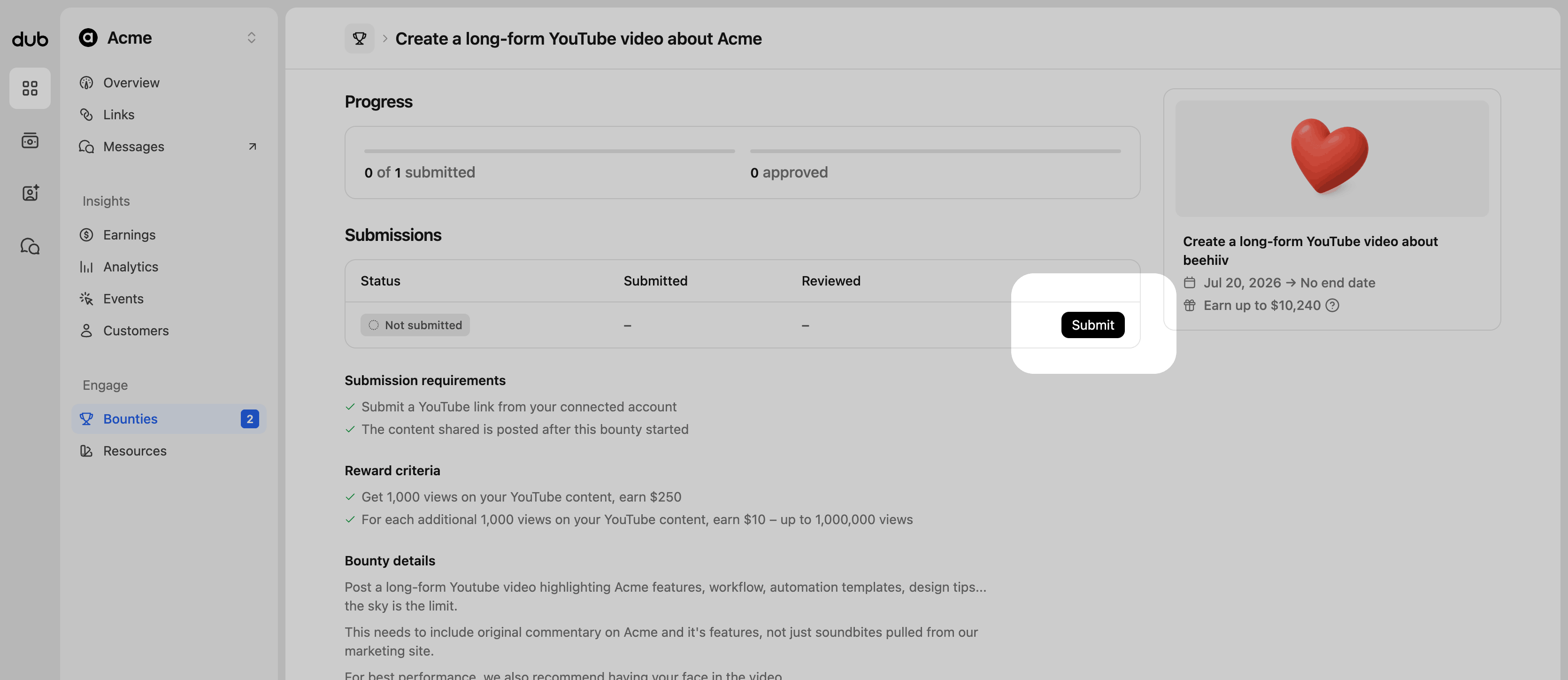
- In progress - you’ve saved a draft, but haven’t submitted it yet.
- Pending review - your submission is waiting to be reviewed by the program.
- Approved - your submission was approved, and a commission has been created for the reward. You can track it on your Earnings page.
- Rejected - your submission was rejected. You can view the rejection reason and any notes from the program in the submission details.
Partner Referrals
Some programs reward you for referring other partners to join their program. If a program offers a partner referral reward, you’ll see a Partner Referrals page in the program navigation.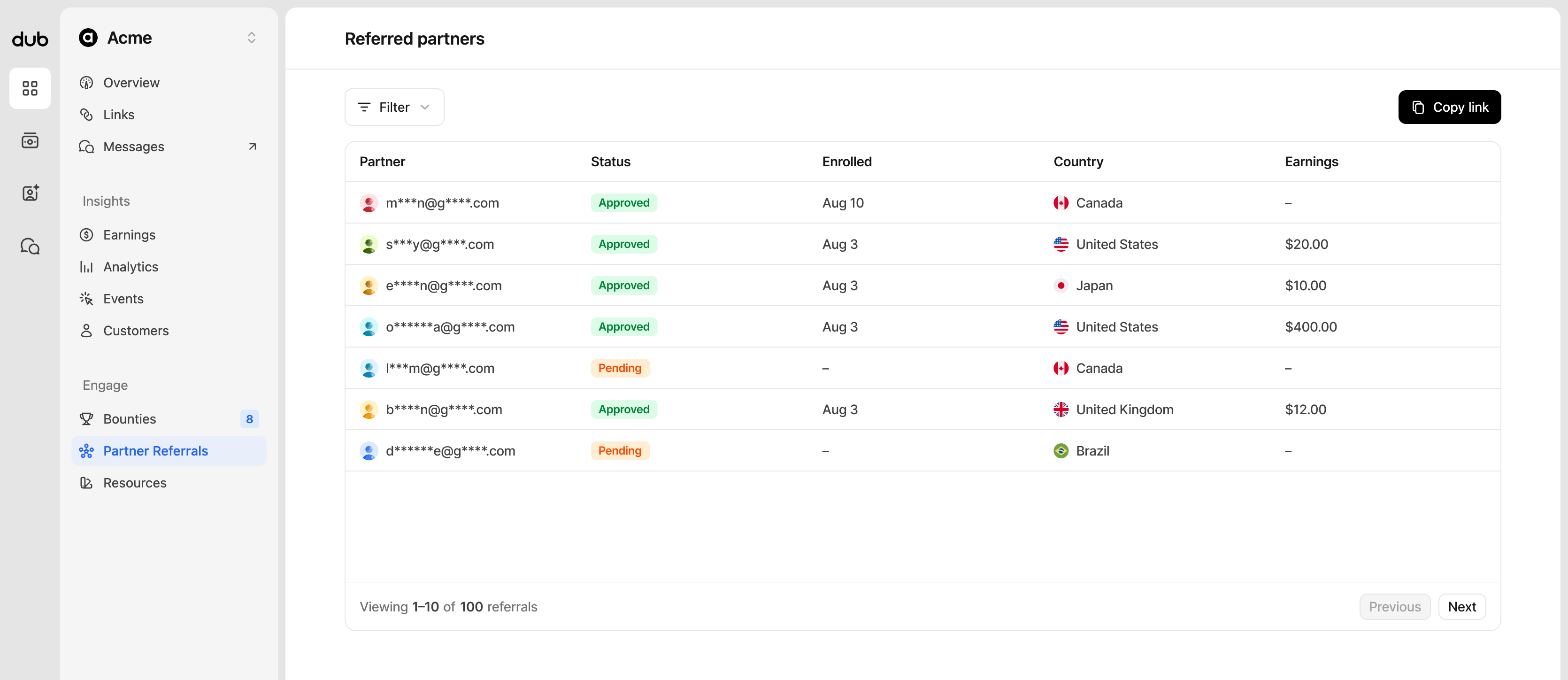
- Partner - the referred partner’s email address. Like the Customers page, emails are partially masked unless the program has enabled data sharing.
- Status - their current enrollment status in the program (e.g. pending or approved).
- Enrolled - the date they applied to the program.
- Country - the country they’re based in.
- Earnings - the total referral commissions you’ve earned from that partner.
Depending on the program’s reward conditions, you’ll earn a referral
commission when your referred partner is approved to the program, or once
they earn a certain amount in commissions. Learn more about how partner
referrals work.
Resources
Quite often, programs will provide additional assets and resources to help their partners when sharing their referral links.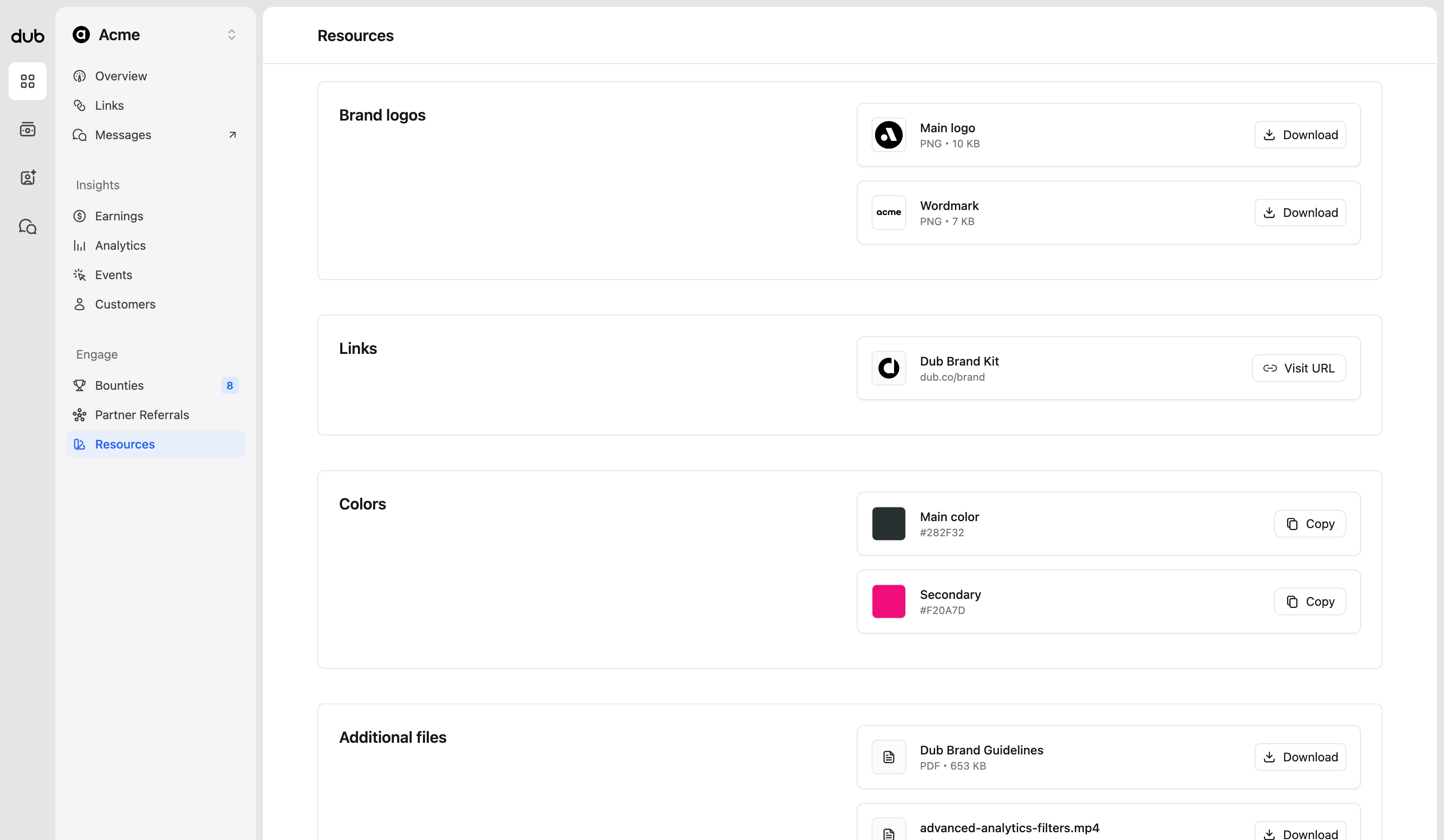
- Brand logos - These are the official logo and brand files from the program, available to download.
- Links - Helpful links shared by the program, like landing pages, media kits, or contact emails.
- Colors - Make sure you’re using the correct hex values in your campaigns or other marketing assets. Click Copy to copy the hex value to your clipboard.
- Additional files - This is for anything else that may fall outside of the brand logos and colors. It could be additional marketing images, documents to read, or campaign examples. If anything is missing that you’ll need to be successful, make sure to contact the program’s support at the bottom of the program navigation.
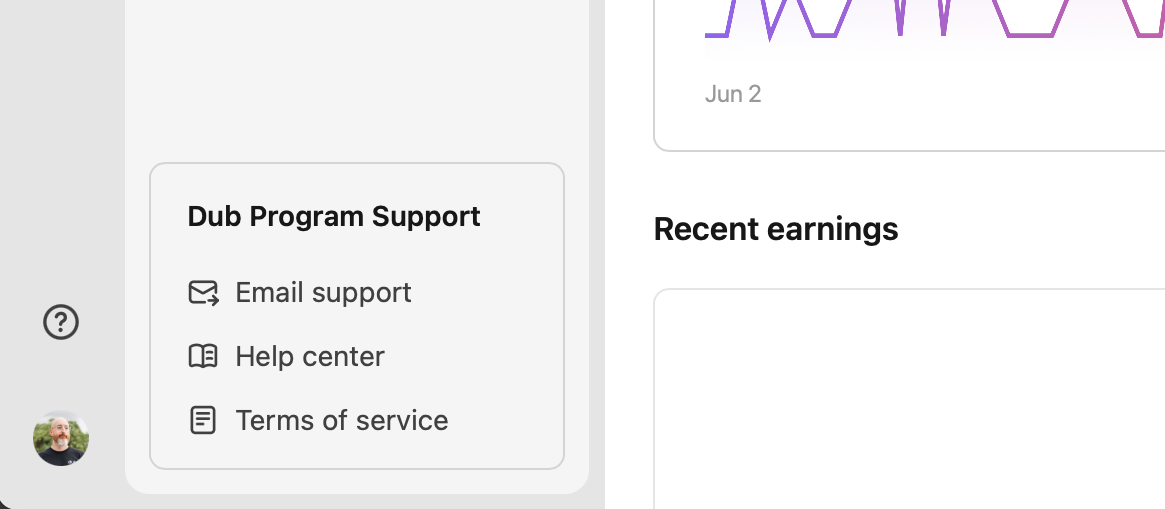
Program help and support
Every program provides email support for its partners and the questions you have that are specific to the program. Optionally, a program may also provide a link to the help documentation and up-to-date terms of service.