Step 1: Configure Directory Sync on Dub
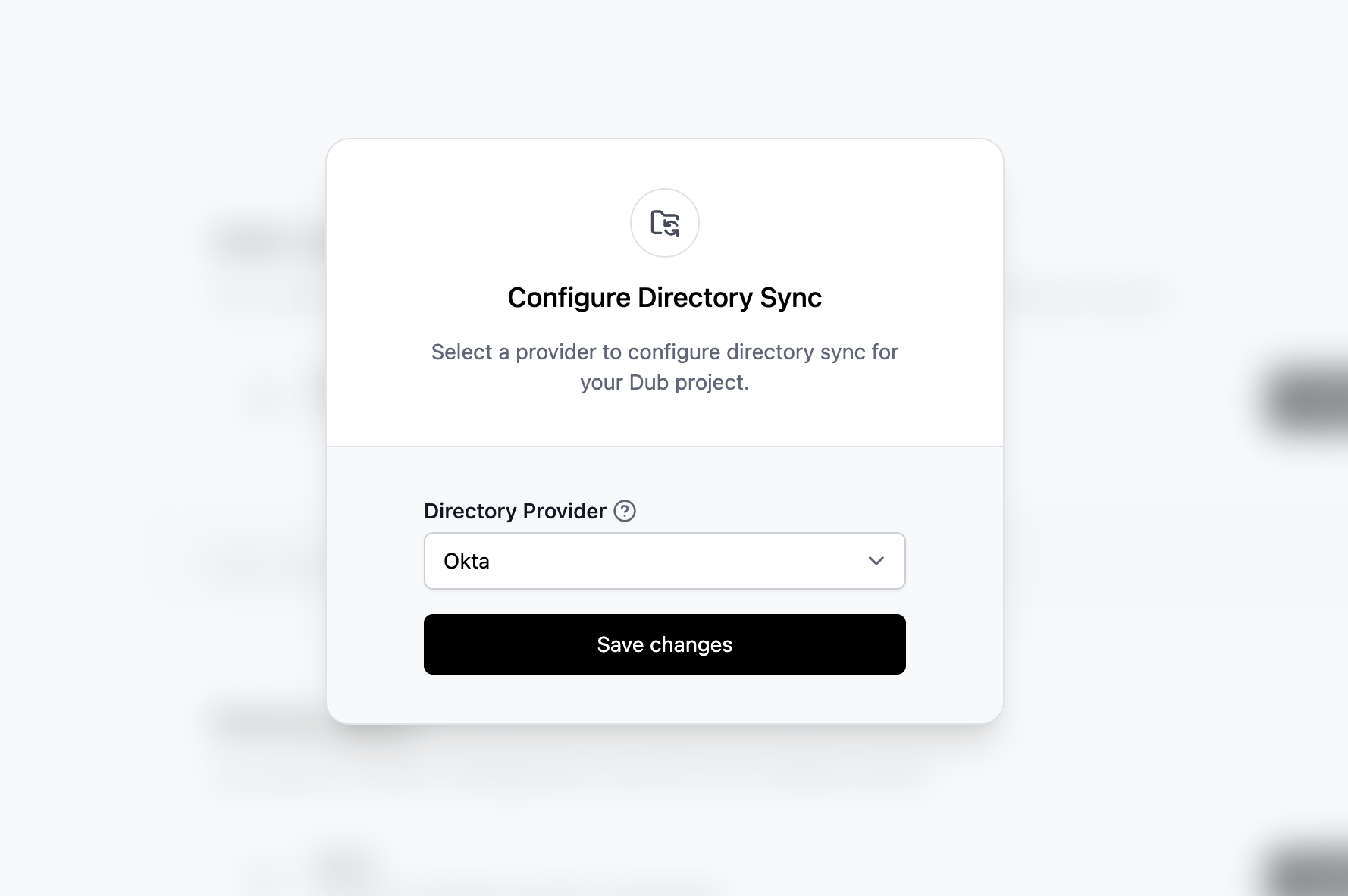
In your workspace settings, click on Security in the Workspace group.
- Select Okta as the Directory Provider.
- Click Save changes.
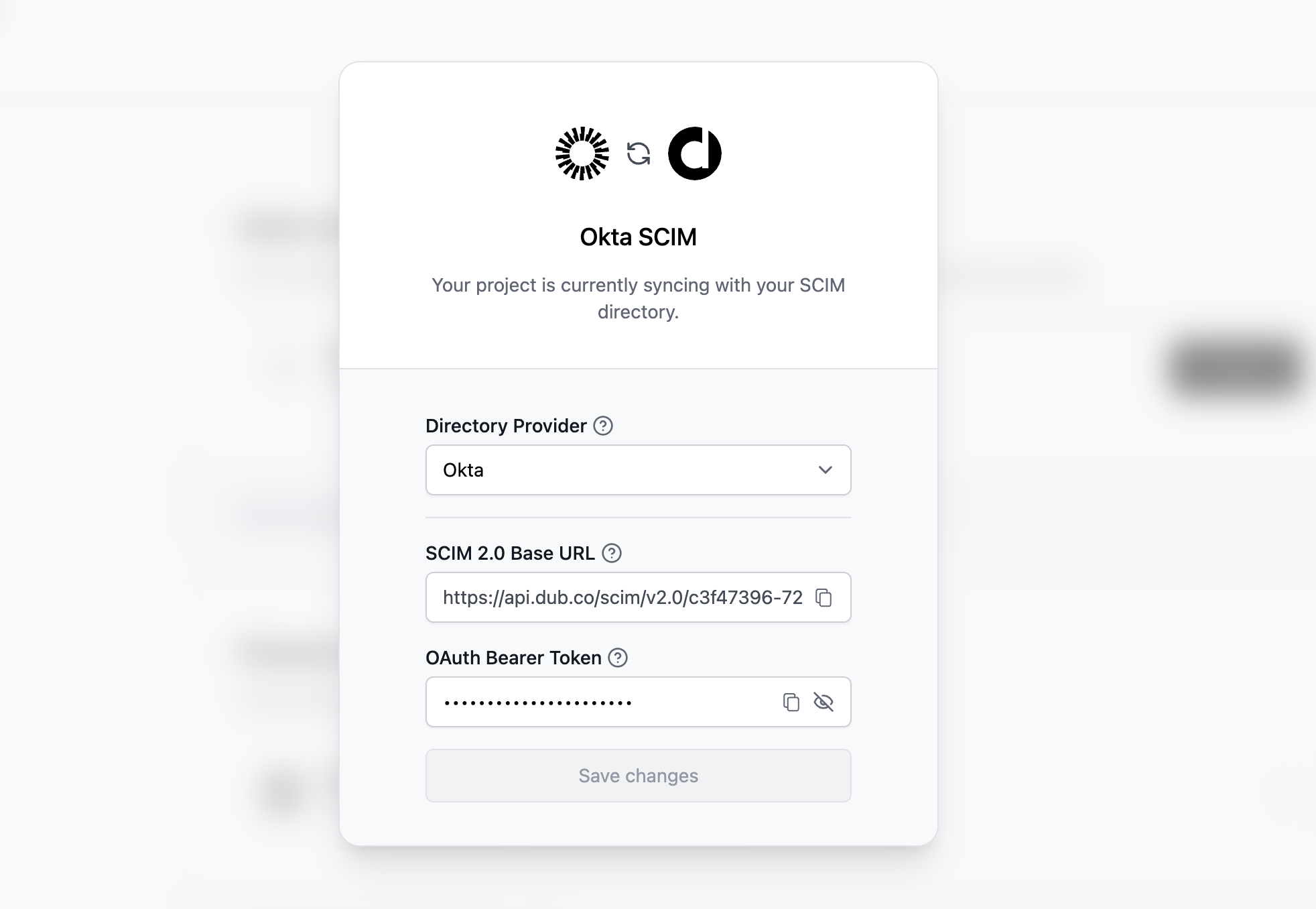
- SCIM 2.0 Base URL
- OAuth Bearer Token
Step 2: Add Provisioning to SAML Application
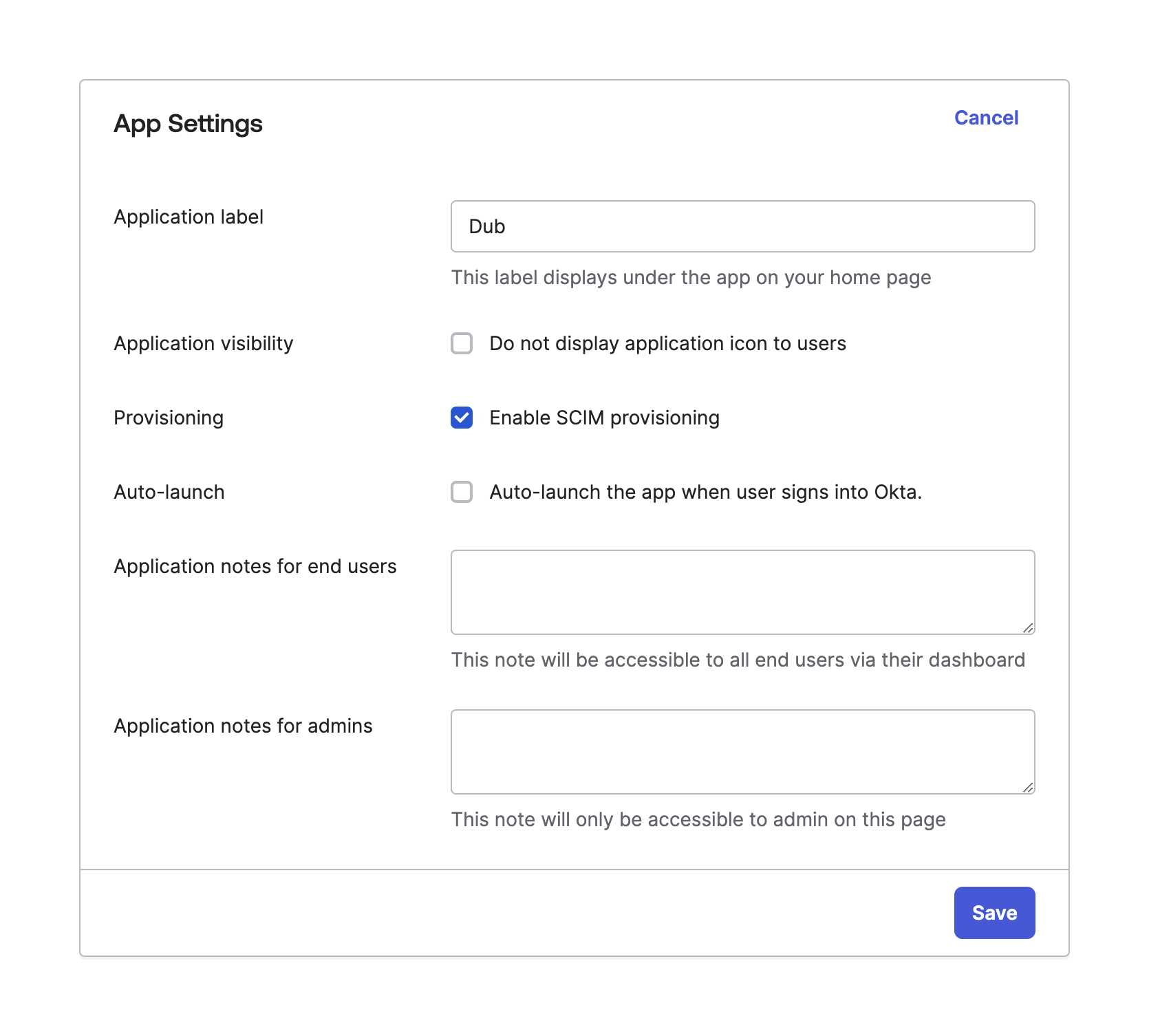
Go to the General tab of your existing Dub Okta SAML application that you want to enable SCIM provisioning for. Under App Settings click Edit.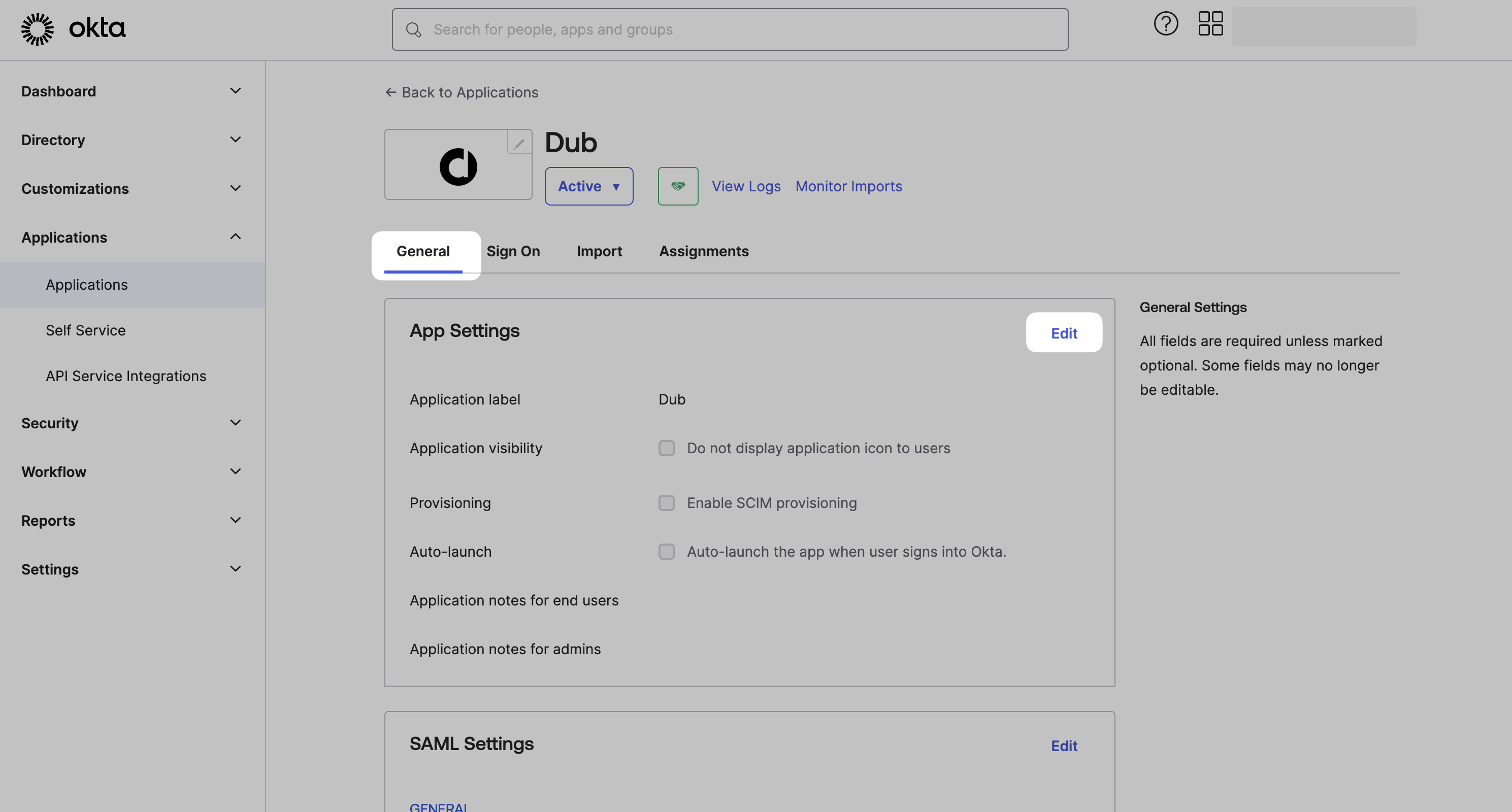
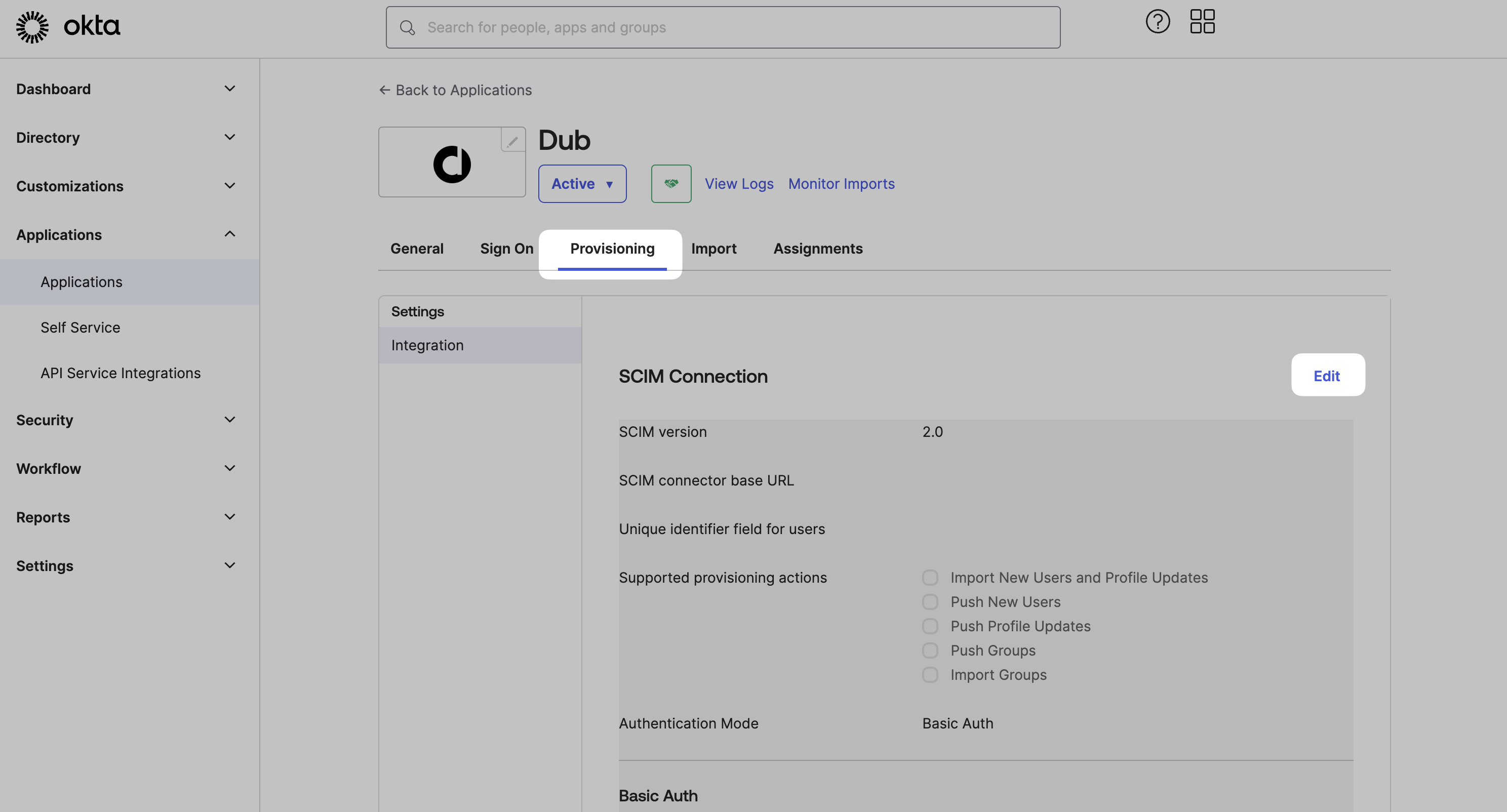
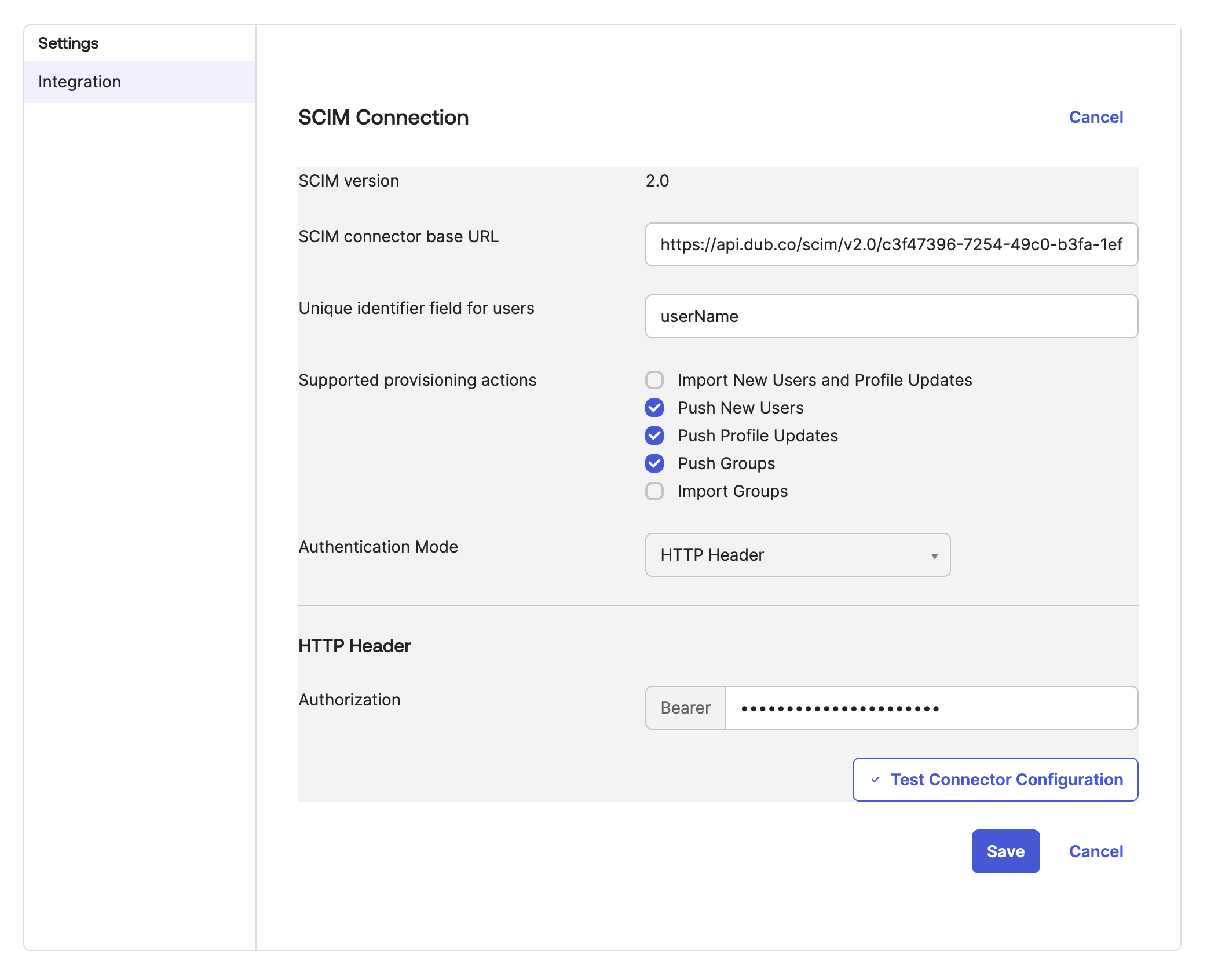
- Under the SCIM connector base URL field, enter the SCIM 2.0 Base URL value from Step 1.
-
Under Unique identifier field for users, enter
userName.
Copy this unique identifier
- Under Supported provisioning actions, select the following options:
- Push New Users
- Push Profile Updates
- Push groups
- Under Authentication Mode, select HTTP Header.
- Copy & paste the OAuth Bearer Token value from Step 1 into the Authorization field.
Step 3: Configure Provisioning Actions
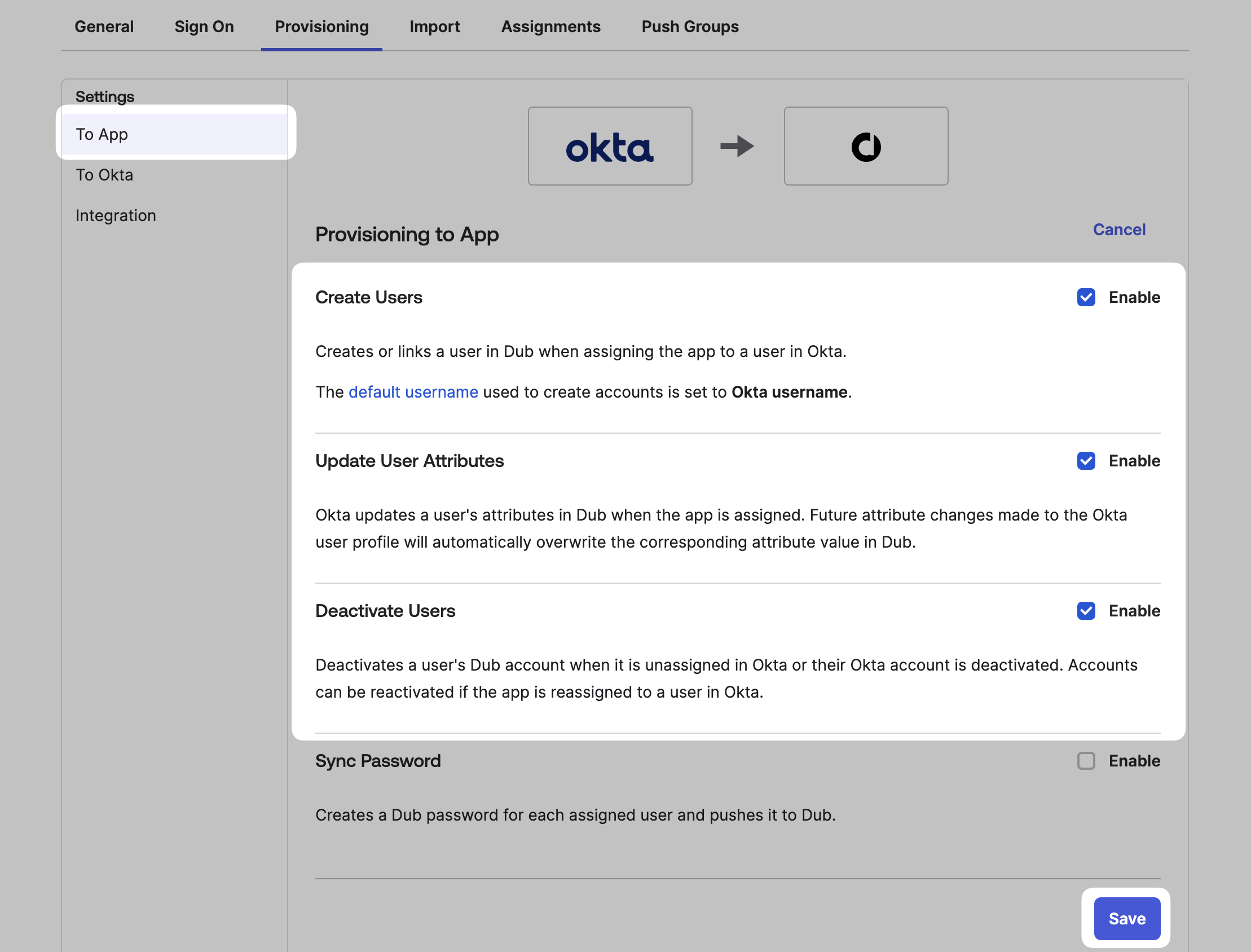
Under the To App section, click Edit. Check the following options, and click Save:- Create Users
- Update User Attributes
- Deactivate Users
Step 4: Assign Users
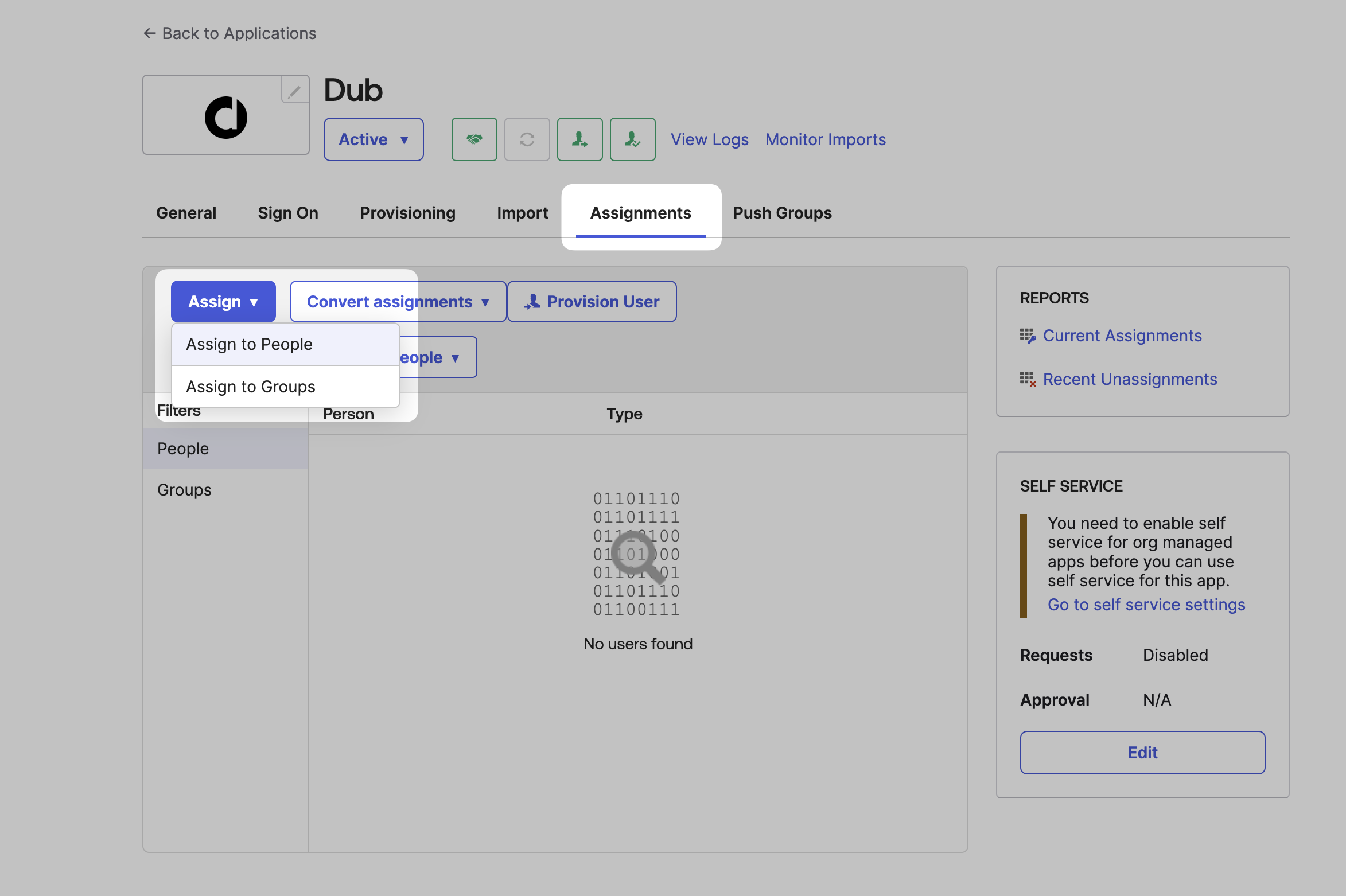
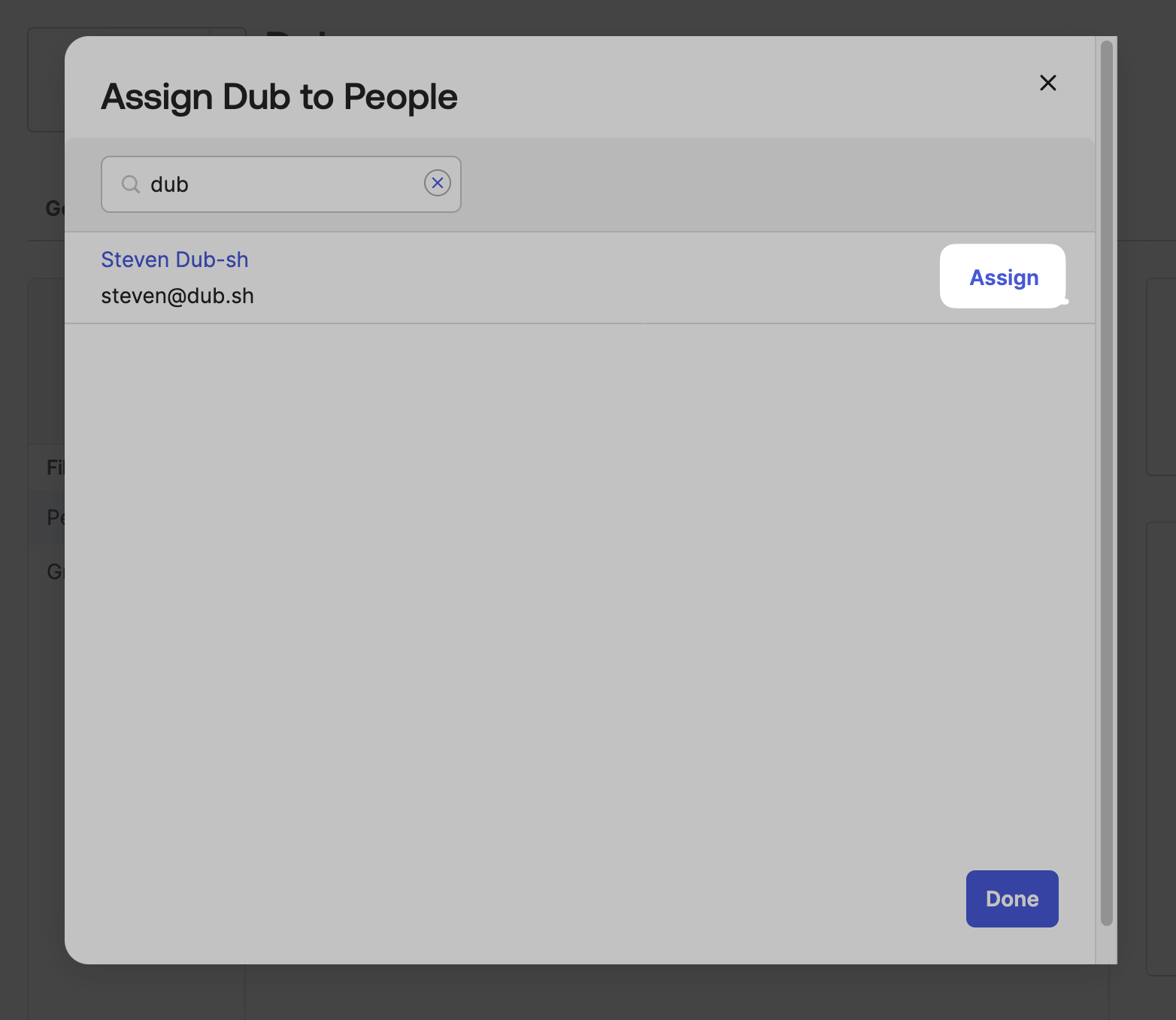
Once you’ve configured Directory sync, you can assign users to Dub directly within Okta. Click on the Assignments tab, and click Assign. You can choose to assign users individually, or assign them in bulk by group.